Save your own copy
Use File > Save As in Excel. Keep the original workbook for next time.
Your getting-started guide
Prepare one invoice from item quantities and rates. Apply each discount before its line tax, then subtract payments already received from the invoice total.
Your first five minutes
Replace the seller, client, invoice number, issue date, due date, and currency label in the amber fields.
See the fields in InvoiceReplace item examples in rows 14–25. Enter quantity, rate, discount percentage, and tax percentage, including 0% when none applies.
See the fields in InvoiceReview subtotal, tax, total, payments, and balance due in rows 28–32. Check Excel print preview before exporting to PDF.
See the fields in InvoiceAmber: your entries. Type your information here.
Green: calculated results. Keep these formulas.
Status colors can change as you work. Use the field instructions below to confirm what you can edit.
Follow along in your copy
The workbook already contains illustrative records so you can see how it works. Find these cells, make a small change following the first steps, and review the result before entering your own information.
These are sample values. Replace or clear the amber example cells before relying on your totals.
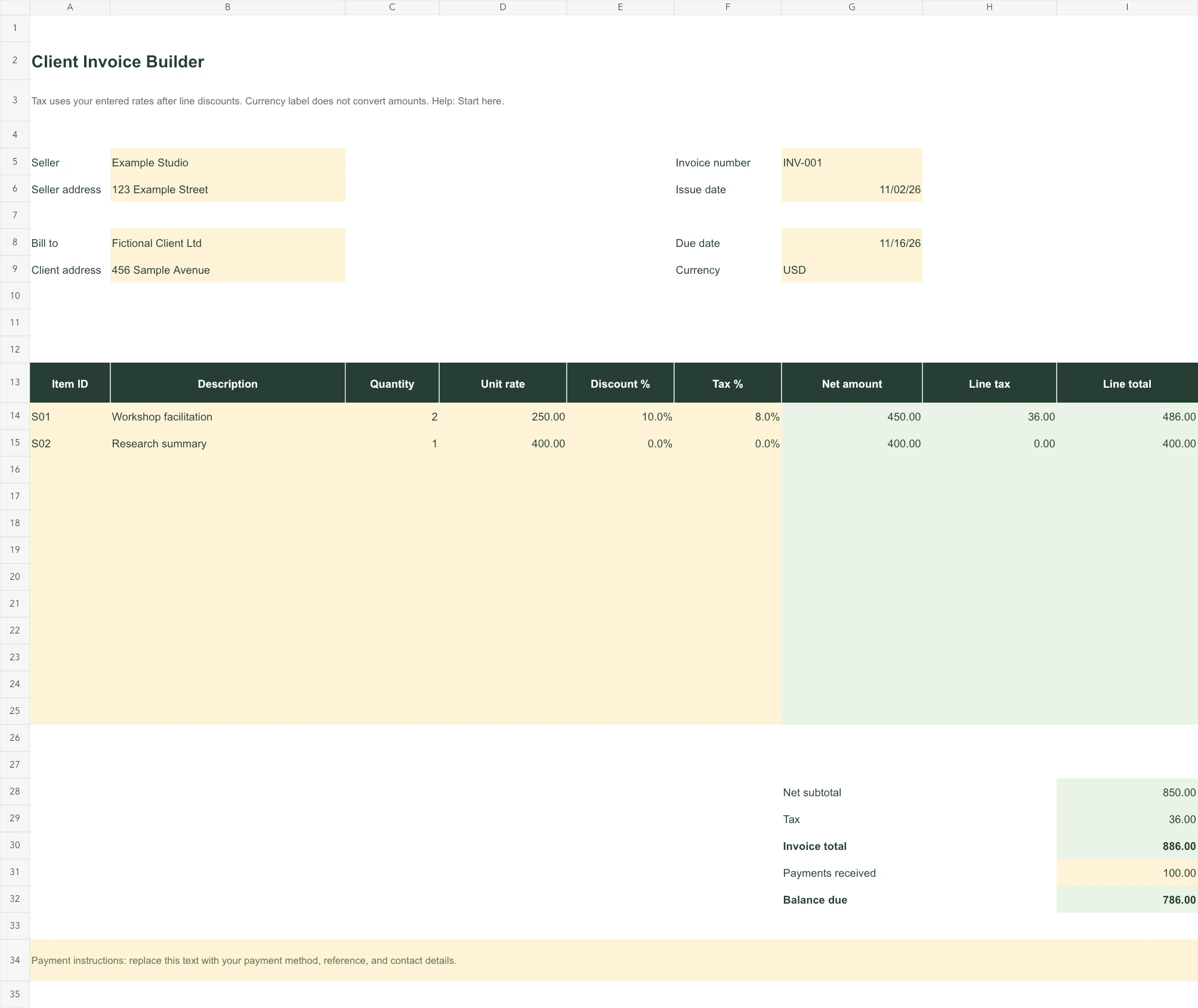 Open the worksheet preview
New to spreadsheets?
Use File > Save As in Excel. Keep the original workbook for next time.
Click a tab at the bottom to open it. B7 means column B, row 7.
Click an amber cell, type, and press Enter. Press Tab to move right.
Use the arrow on a validated cell to choose one of the listed options.
Use real dates and numeric amounts. Enter 50% for half. Keep the existing formats.
Use Ctrl+Z on Windows or Command+Z on Mac. Keep formulas, which start with =.
Keep this beside your workbook
Enter invoice details, seller and client information, item lines, and payments. Check print preview before exporting your invoice as PDF.
| Field and cells | What to do |
|---|---|
| Seller (B5) | Enter the seller’s legal or trading name. |
| Invoice number (G5) | Use your unique invoice identifier. |
| Bill to (B8) | Enter the customer name. |
| Item ID (A14) | Use a short item reference. |
| Description (B14) | Describe the service or goods. |
| Quantity (C14) | Enter billed quantity. |
| Discount (E14) | Enter 0% if none. |
| Tax (F14) | Enter your applicable line rate, including confirmed 0%. |
| Payments (I31) | Record payments already received in the invoice currency. |
Make it part of your routine
All populated records are fictional. Replace or clear amber examples before using totals.
One invoice, 12 lines, and one manually labeled currency. Tax is a user-entered per-line rate after discount. No jurisdiction-specific tax rules, e-invoicing, payment collection, or emailing.
Leave unknown values blank. Enter 0 for a confirmed zero. Read any missing-input messages before using a result.
Beyond prepared capacity, extend formulas, dropdowns, chart and summary ranges, and any pivot source range.