Save your own copy
Use File > Save As in Excel. Keep the original workbook for next time.
Your getting-started guide
Keep individual equipment records in one place. Review active purchase cost, assignment, warranty expiry, and replacement dates against a single editable review date.
Your first five minutes
Set the review date in B5. All warranty and replacement alerts use this date, so a saved review stays reproducible.
See the fields in OverviewReplace the fictional examples in A8:L107. Use one unique ID per physical asset; enter numeric cost and real dates.
See the fields in AssetsResolve rows needing review, then filter Assets by warranty or replacement alerts. Retired assets are excluded from active totals.
See the fields in OverviewAmber: your entries. Type your information here.
Green: calculated results. Keep these formulas.
Status colors can change as you work. Use the field instructions below to confirm what you can edit.
Follow along in your copy
The workbook already contains illustrative records so you can see how it works. Find these cells, make a small change following the first steps, and review the result before entering your own information.
These are sample values. Replace or clear the amber example cells before relying on your totals.
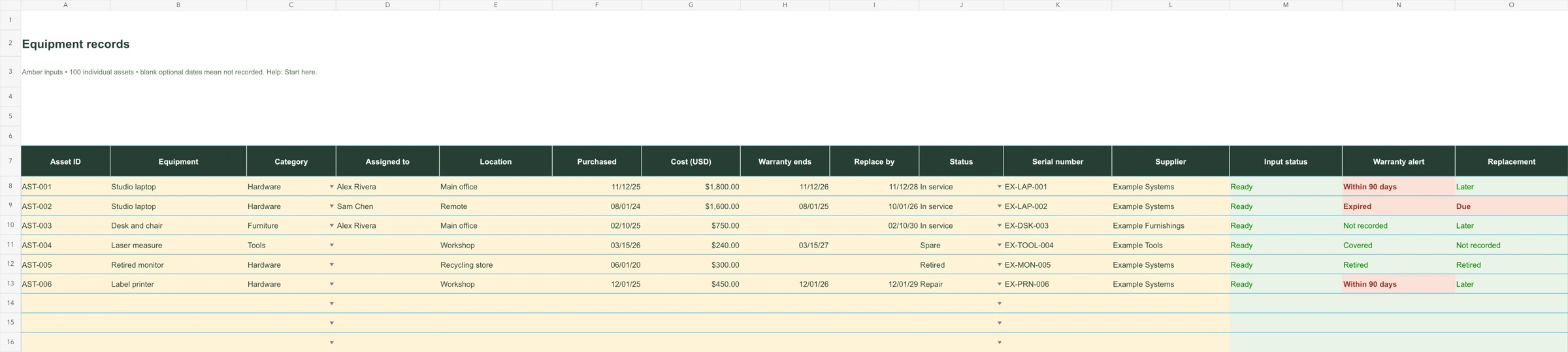 Open the worksheet preview
New to spreadsheets?
Use File > Save As in Excel. Keep the original workbook for next time.
Click a tab at the bottom to open it. B7 means column B, row 7.
Click an amber cell, type, and press Enter. Press Tab to move right.
Use the arrow on a validated cell to choose one of the listed options.
Use real dates and numeric amounts. Enter 50% for half. Keep the existing formats.
Use Ctrl+Z on Windows or Command+Z on Mac. Keep formulas, which start with =.
Keep this beside your workbook
Set the review date and review active assets, purchase cost, assignments, and due dates.
| Field and cells | What to do |
|---|---|
| Review date (B5) | Date used for all alerts. Advance it when reviewing the register. |
| Active assets (B8) | Validated assets with In service, Spare, or Repair status. |
| Active purchase cost (B9) | Acquisition cost of active assets, not depreciation or resale value. |
Maintain 100 unique asset IDs, costs, locations, assignees, dates, and lifecycle statuses.
| Field and cells | What to do |
|---|---|
| Asset ID (A8) | Unique stable identifier. Duplicate IDs flag both rows. |
| Equipment (B8) | Describe one physical item. |
| Category (C8) | Choose Hardware, Furniture, Tools, Vehicles, or Other. |
| Assigned to (D8) | Optional name; blank means unassigned. |
| Location (E8) | Required location. |
| Purchase date (F8) | Real acquisition date on or before the review date. |
| Purchase cost (G8) | Nonnegative USD amount; enter 0 for a confirmed zero. |
| Warranty ends (H8) | Optional real date on or after purchase. |
| Replace by (I8) | Optional target date on or after purchase. |
| Status (J8) | Choose In service, Spare, Repair, or Retired. |
| Serial number (K8) | Optional manufacturer identifier. |
| Supplier (L8) | Optional supplier or purchase reference. |
Make it part of your routine
All populated records are fictional. Replace or clear amber examples before using totals.
100 individual assets. Manual data entry and date review; no depreciation, device discovery, check-in app, reminders, or accounting sync.
Leave unknown values blank. Enter 0 for a confirmed zero. Read missing-input messages before using a result.
Beyond prepared capacity, extend formulas, validation, summary ranges, and chart ranges together.