Save your own copy
In Excel, use File > Save As and give your copy a name. Save again after making changes. Keep a fresh original for next time.
Your getting-started guide
The most useful meeting notes tell the team what happens next. This action log keeps decisions and follow-through together, so the next meeting starts with progress instead of a search through old notes.
Your first five minutes
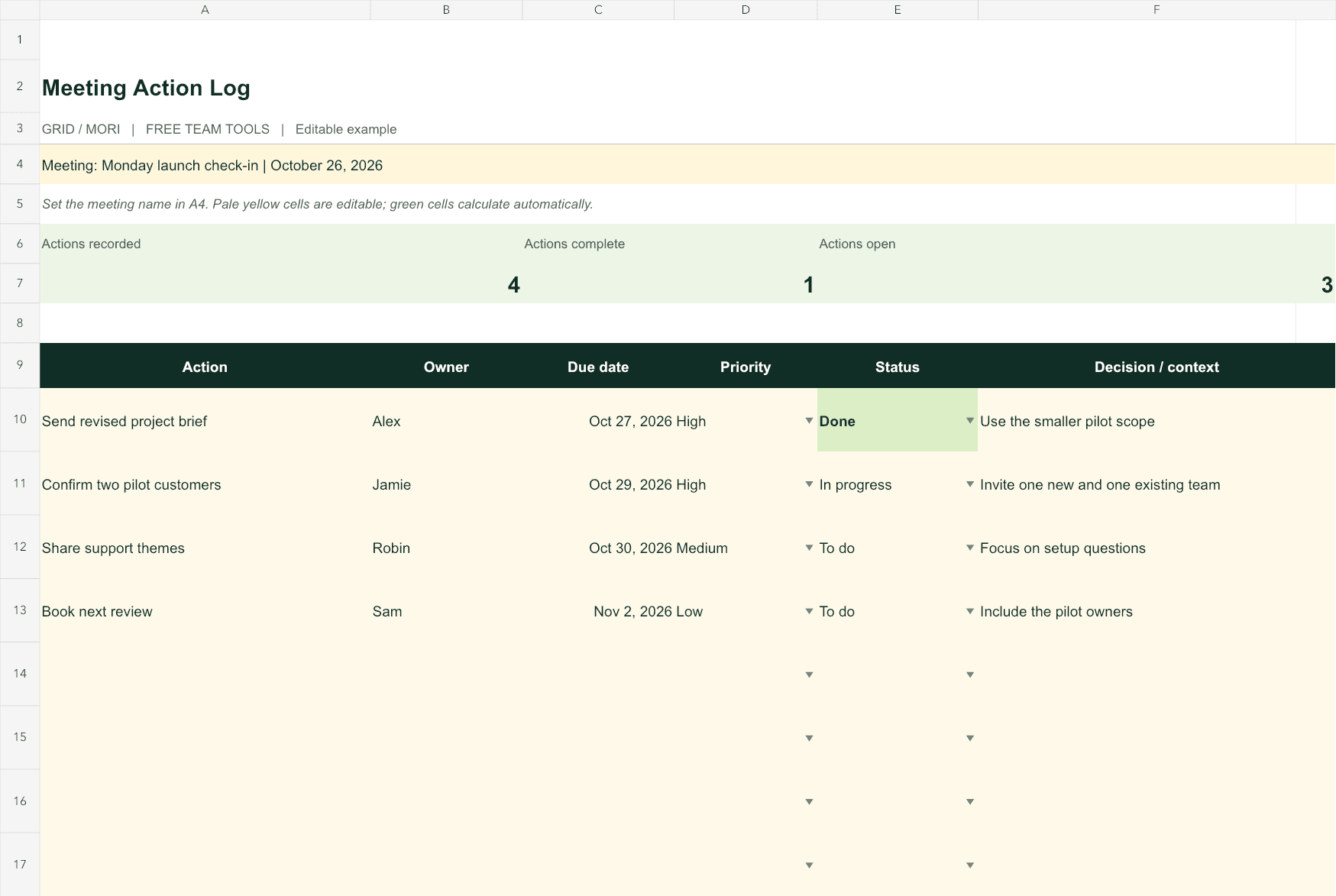
Update the context in A4 with your team, project, or review period.
See the fields in Team worksheetReplace the example in row 10 with your own action. Fill the amber cells across that row.
See the fields in Team worksheetReview open actions at the next meeting and mark completed work Done.
See the fields in Team worksheetAmber: your entries. Type your information here.
Green: calculated results. Keep these formulas.
Status colors can change as you work. Use the field instructions below to confirm what you can edit.
Follow along in your copy
The workbook already contains illustrative records so you can see how it works. Find these cells, make a small change following the first steps, and review the result before entering your own information.
These are sample values. Replace or clear the amber example cells before relying on your totals.
New to spreadsheets?
In Excel, use File > Save As and give your copy a name. Save again after making changes. Keep a fresh original for next time.
The names along the bottom are tabs. Click one to open it. A cell is one box: B7 means column B, row 7.
Click an amber cell, type, and press Enter. Press Tab to move right. Double-click a cell to edit part of its text.
Click a cell with a dropdown, then click its small arrow and choose a listed option. The field notes list the available choices.
Enter dates such as 11/06/2026 and amounts as numbers, such as 1250. Enter 50% for half. Keep the existing number formats.
Press Ctrl+Z on Windows or Command+Z on Mac immediately after a mistake. A formula starts with = in the formula bar; keep it in place.
Keep this beside your workbook
Set the meeting name in A4. Pale yellow cells are editable; green cells calculate automatically. Editable cells begin at A4. Use the prepared amber rows for new records.
| Field and cells | What to do |
|---|---|
| Context (A4) | Replace this amber setting with your own value. Check the related dates and inputs when changing the period. |
| Agreed action A10:A29 | Replace the example with your own information for this record. |
| Owner B10:B29 | Replace the example with your own information for this record. |
| Due date C10:C29 | Enter a real date such as 11/06/2026. Use the same reporting period as the rest of the record. |
| Next check-in D10:D29 | Write a short, specific description that another person can act on or check. |
| Status E10:E29 | Replace the example with your own information for this record. Choose: Open, In progress, Done. |
| Next step F10:F29 | Write a short, specific description that another person can act on or check. |
Make it part of your routine
The filled rows are examples. Replace or clear their amber input cells so sample records do not stay in your totals. Keep formulas and headings.
Read the actions aloud before the meeting ends. Everyone should leave knowing what they own.
Name the meeting and record each action as a specific next step. Agree on one owner and enter a real due date for every commitment. Review open actions at the next meeting and mark completed work Done.
No. This is a standalone spreadsheet and printable log. Use the due-date column to review commitments together or add reminders in your team's calendar.
Use rows 10–29 for up to 20 records. For more, extend the formulas, dropdowns, and summary ranges. A copied row alone does not extend every summary.
Leave an unknown value blank. Enter 0 when you have confirmed there is none. If you see Complete inputs or Add dates, fill the missing source fields first.
Check for leftover example rows, missing dates or amounts, mismatched names, and text entered instead of numbers. If a formula was replaced, Undo or copy it from a fresh original.