Save your own copy
Use File > Save As in Excel. Keep the original workbook for next time.
Your getting-started guide
Build one customer-facing quote or estimate using a reusable price list. Optional items stay separate from the offer total. Track other offers in a manual register without exposing internal price-list or register data on the printed form.
Your first five minutes
Replace the fictional items in A8:D57. Codes must be unique; rates and tax percentages must be numeric.
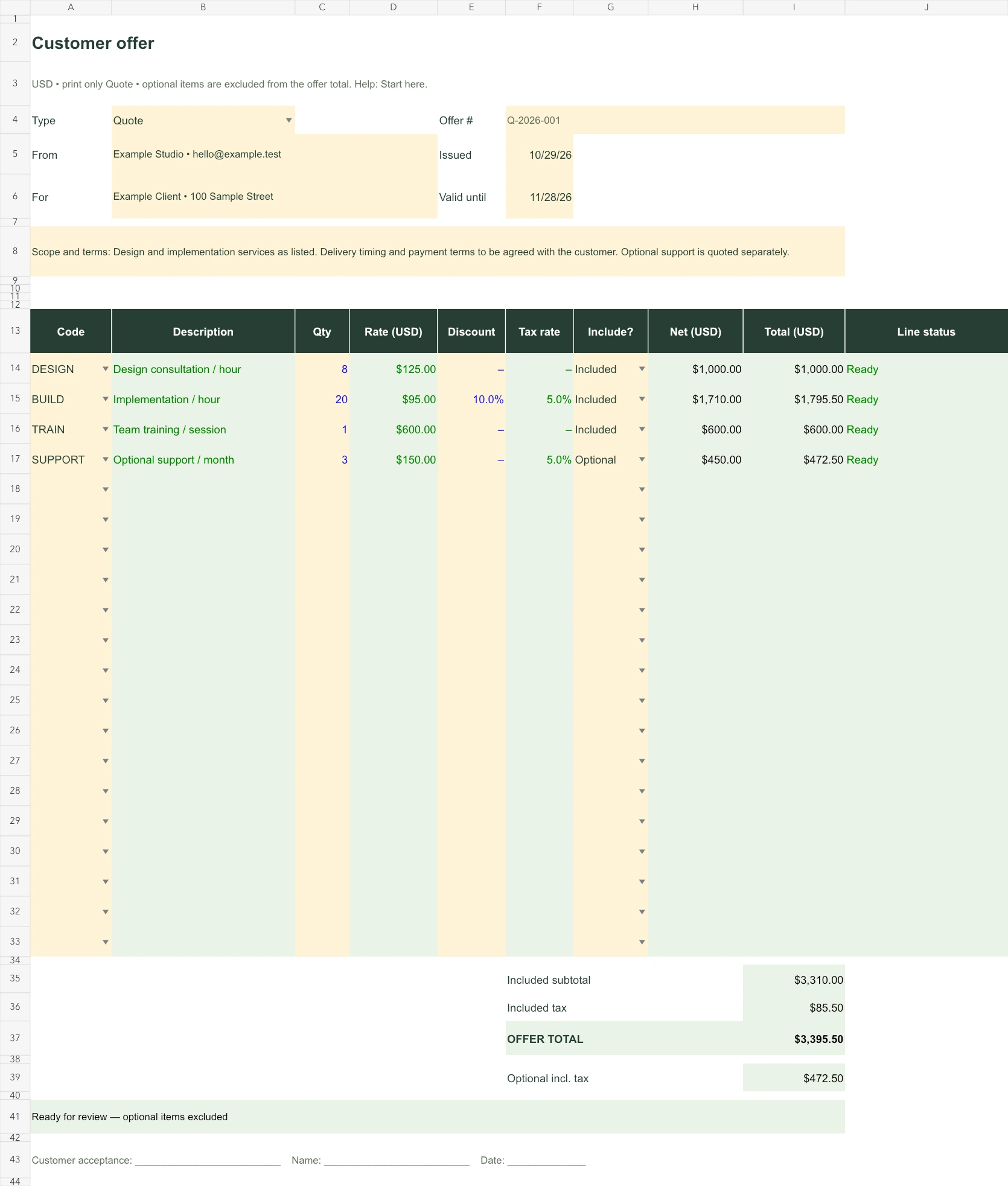
See the fields in Price listReplace seller/client details and dates, then select item codes in A14:A33 and enter quantity, discount, and Included or Optional. Use the price list for descriptions, rates, and tax.
See the fields in QuoteSave a copy for each offer and record it manually in the log. Changing the form does not save a quote to the log. Print or export only Quote as a PDF.
See the fields in Quote logAmber: your entries. Type your information here.
Green: calculated results. Keep these formulas.
Status colors can change as you work. Use the field instructions below to confirm what you can edit.
Follow along in your copy
The workbook already contains illustrative records so you can see how it works. Find these cells, make a small change following the first steps, and review the result before entering your own information.
These are sample values. Replace or clear the amber example cells before relying on your totals.
 Open the worksheet preview
New to spreadsheets?
Use File > Save As in Excel. Keep the original workbook for next time.
Click a tab at the bottom to open it. B7 means column B, row 7.
Click an amber cell, type, and press Enter. Press Tab to move right.
Use the arrow on a validated cell to choose one of the listed options.
Use real dates and numeric amounts. Enter 50% for half. Keep the existing formats.
Use Ctrl+Z on Windows or Command+Z on Mac. Keep formulas, which start with =.
Keep this beside your workbook
Prepare one customer-facing offer, review included and optional totals, and print only the Quote sheet.
| Field and cells | What to do |
|---|---|
| Document type (B4) | Choose Quote or Estimate. |
| Seller (B5) | Your business name and contact details. |
| Customer (B6) | Customer name and address. |
| Offer number (F4) | Unique reference for this offer. |
| Issue date (F5) | Real date issued. |
| Valid until (F6) | Expiry date, on or after issue date. |
| Item code (A14) | Select a unique code from Price list. |
| Quantity (C14) | Positive number of units or hours. |
| Discount (E14) | Percentage deducted from that line before tax. |
| Include? (G14) | Included enters the offer total; Optional stays in a separate total. |
Maintain 50 unique item codes with descriptions, unit rates, and default tax rates.
| Field and cells | What to do |
|---|---|
| Item code (A8) | Unique reusable identifier. |
| Description (B8) | Customer-facing item or service description. |
| Unit rate (C8) | Nonnegative USD rate. |
| Tax rate (D8) | Default line tax percentage; enter 0% when none applies. |
Record 50 offers manually and review open, accepted, and expired offers against a review date.
| Field and cells | What to do |
|---|---|
| Review date (B5) | Date used to classify open offers as expired. |
| Offer ID (A8) | Unique quote or estimate reference. |
| Customer (B8) | Customer name. |
| Issue date (C8) | Original issue date. |
| Expiry date (D8) | Valid-until date. |
| Offer amount (E8) | Manually recorded total including tax, excluding optional items. |
| Decision (F8) | Choose Open, Accepted, or Declined. |
| Next follow-up (G8) | Optional next action date. |
Make it part of your routine
All populated records are fictional. Replace or clear amber examples before using totals.
One printable offer with 20 lines, 50 reusable prices, and 50 manually recorded offers. USD only. No saved-document automation, electronic signatures, invoice conversion, email sending, or tax-rule engine.
Leave unknown values blank. Enter 0 for a confirmed zero. Read missing-input messages before using a result.
Beyond prepared capacity, extend formulas, validation, summary ranges, and chart ranges together.