Save your own copy
Use File > Save As in Excel. Keep the original workbook for next time.
Your getting-started guide
Review one month of rent and operating expenses by property. Keep accrued rent-based NOI separate from cash collected less operating expenses.
Your first five minutes
Set the review month in B5 and replace the five property names in A8:A12.
See the fields in OverviewReplace the sample units in rows 8–27. Enter market rent, scheduled rent, rent collected, and occupancy for the same month.
See the fields in Rent rollEnter expenses in Expenses, then review collection gaps and operating income. Deposits, debt service, capex, depreciation, and income tax are excluded.
See the fields in OverviewAmber: your entries. Type your information here.
Green: calculated results. Keep these formulas.
Status colors can change as you work. Use the field instructions below to confirm what you can edit.
Follow along in your copy
The workbook already contains illustrative records so you can see how it works. Find these cells, make a small change following the first steps, and review the result before entering your own information.
These are sample values. Replace or clear the amber example cells before relying on your totals.
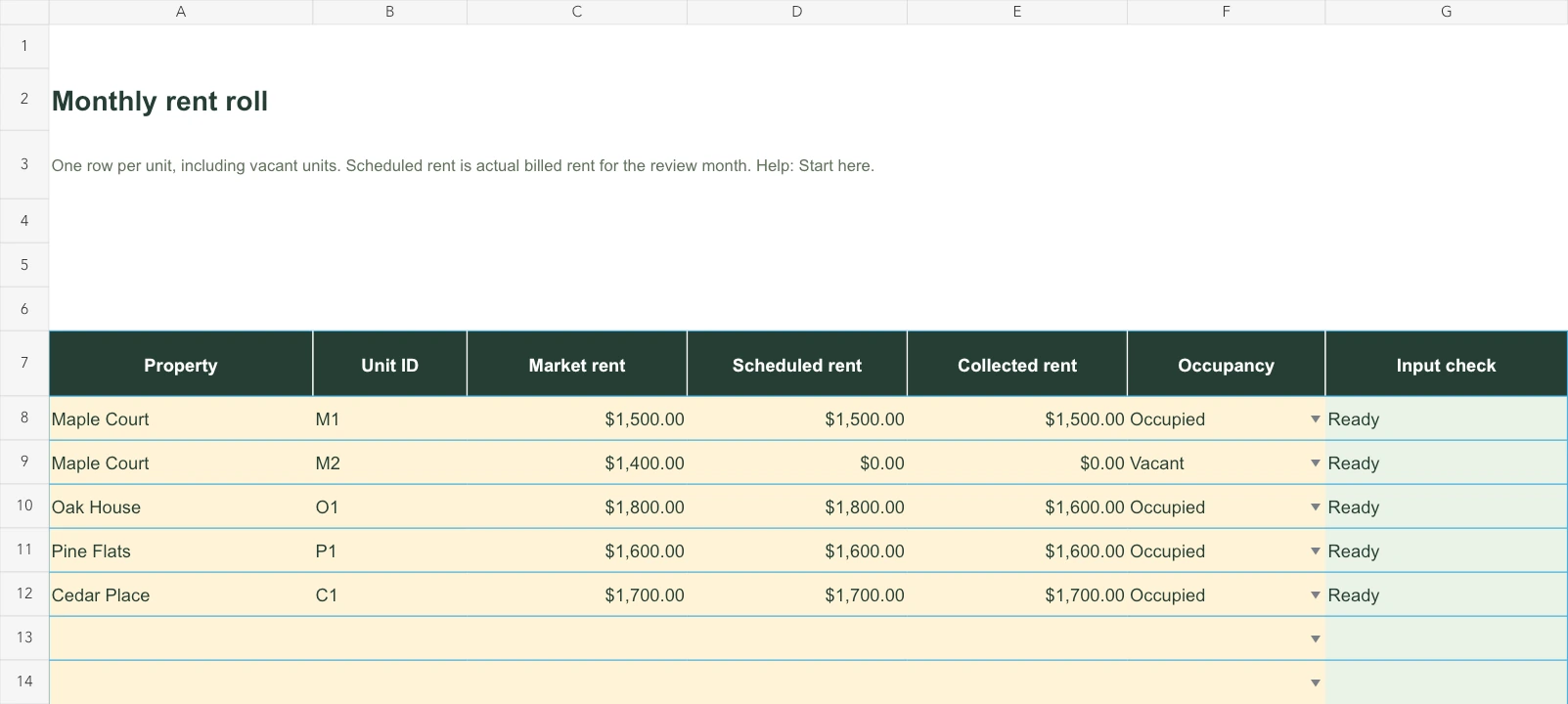 Open the worksheet preview
New to spreadsheets?
Use File > Save As in Excel. Keep the original workbook for next time.
Click a tab at the bottom to open it. B7 means column B, row 7.
Click an amber cell, type, and press Enter. Press Tab to move right.
Use the arrow on a validated cell to choose one of the listed options.
Use real dates and numeric amounts. Enter 50% for half. Keep the existing formats.
Use Ctrl+Z on Windows or Command+Z on Mac. Keep formulas, which start with =.
Keep this beside your workbook
Compare scheduled and collected rent by property, vacancy, accrued NOI, and operating cash surplus.
Follow the steps above for this view. Use its amber settings where shown, and keep calculated totals and charts in place.
Enter one row per unit for the month, including vacant units.
| Field and cells | What to do |
|---|---|
| Property (A8) | Use exactly a property label from Overview. |
| Unit ID (B8) | Use a unique unit ID. |
| Market rent (C8) | Enter potential full-month rent in USD. |
| Scheduled rent (D8) | Enter rent billed this month, including confirmed zero for vacancy. |
| Collected rent (E8) | Enter this month’s rent receipts, excluding deposits and prior arrears. |
| Occupancy (F8) | Choose Occupied or Vacant. |
Record operating expenses for the same month using the property names on Overview.
| Field and cells | What to do |
|---|---|
| Property (A8) | Match the property on Overview. |
| Amount (D8) | Enter an operating expense for the review month. |
Make it part of your routine
All populated records are fictional. Replace or clear amber examples before using totals.
One month, five properties, 20 units, and 40 expense rows in USD. No lease proration, arrears ledger, financing, tax, depreciation, valuation, or bank sync.
Leave unknown values blank. Enter 0 for a confirmed zero. Read any missing-input messages before using a result.
Beyond prepared capacity, extend formulas, dropdowns, chart and summary ranges, and any pivot source range.