Save your own copy
Use File > Save As in Excel. Keep the original workbook for next time.
Your getting-started guide
Structure a team decision with explicit criteria, weights, ratings, and evidence. Weighted scores and ranks help the discussion while keeping the underlying judgments visible.
Your first five minutes
Rename the criteria in B4:D4 and set weights in B5:D5. Weights must total 100%; higher ratings must always mean better.
See the fields in OptionsChange B8 from 4 to 5. At a 40% weight, that option’s score rises by 0.4.
See the fields in OptionsReview scores, tied ranks, and supporting evidence. Change weights to explore your own tradeoffs.
See the fields in ComparisonAmber: your entries. Type your information here.
Green: calculated results. Keep these formulas.
Status colors can change as you work. Use the field instructions below to confirm what you can edit.
Follow along in your copy
The workbook already contains illustrative records so you can see how it works. Find these cells, make a small change following the first steps, and review the result before entering your own information.
These are sample values. Replace or clear the amber example cells before relying on your totals.
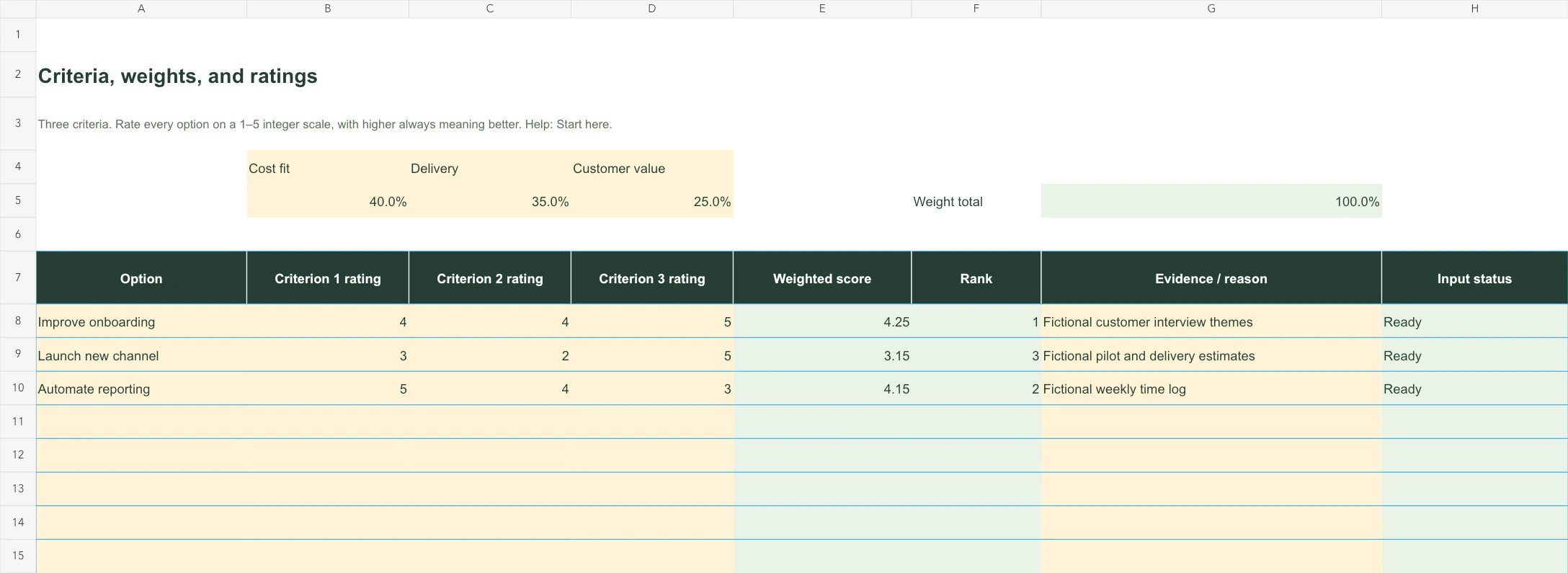 Open the worksheet preview
New to spreadsheets?
Use File > Save As in Excel. Keep the original workbook for next time.
Click a tab at the bottom to open it. B7 means column B, row 7.
Click an amber cell, type, and press Enter. Press Tab to move right.
Use the arrow on a validated cell to choose one of the listed options.
Use real dates and numeric amounts. Enter 50% for half. Keep the existing formats.
Use Ctrl+Z on Windows or Command+Z on Mac. Keep formulas, which start with =.
Keep this beside your workbook
Compare option scores and ranks. Rows stay in source order; filter or sort manually.
| Field and cells | What to do |
|---|---|
| Option (A8) | Links to the source option. |
| Weighted score (B8) | Sum of the three rating × weight products. |
| Rank (C8) | Descending rank; ties share a rank and the next rank is skipped. |
Set criteria and weights, then rate 20 options from 1 to 5 and record supporting evidence.
| Field and cells | What to do |
|---|---|
| First criterion (B4) | Choose a criterion with higher rating meaning better. |
| First weight (B5) | A rate between 0% and 100%; all three weights must total 100%. |
| Option (A8) | Use a distinct option name. |
| First rating (B8) | Whole number 1–5. Define your scale before scoring. |
| Second rating (C8) | Rate against the second criterion. |
| Third rating (D8) | Rate against the third criterion. |
| Evidence (G8) | Record the reason or source behind your ratings. |
Make it part of your routine
All populated records are fictional. Replace or clear amber examples before using totals.
20 options and three criteria. Weights and ratings are team judgments; the workbook does not collect evidence, optimize a portfolio, or make a recommendation. Ranks update; rows do not automatically reorder.
Leave unknown values blank. Enter 0 for a confirmed zero. Read missing-input messages before using a result.
Beyond prepared capacity, extend formulas, validation, summary ranges, and chart ranges together.