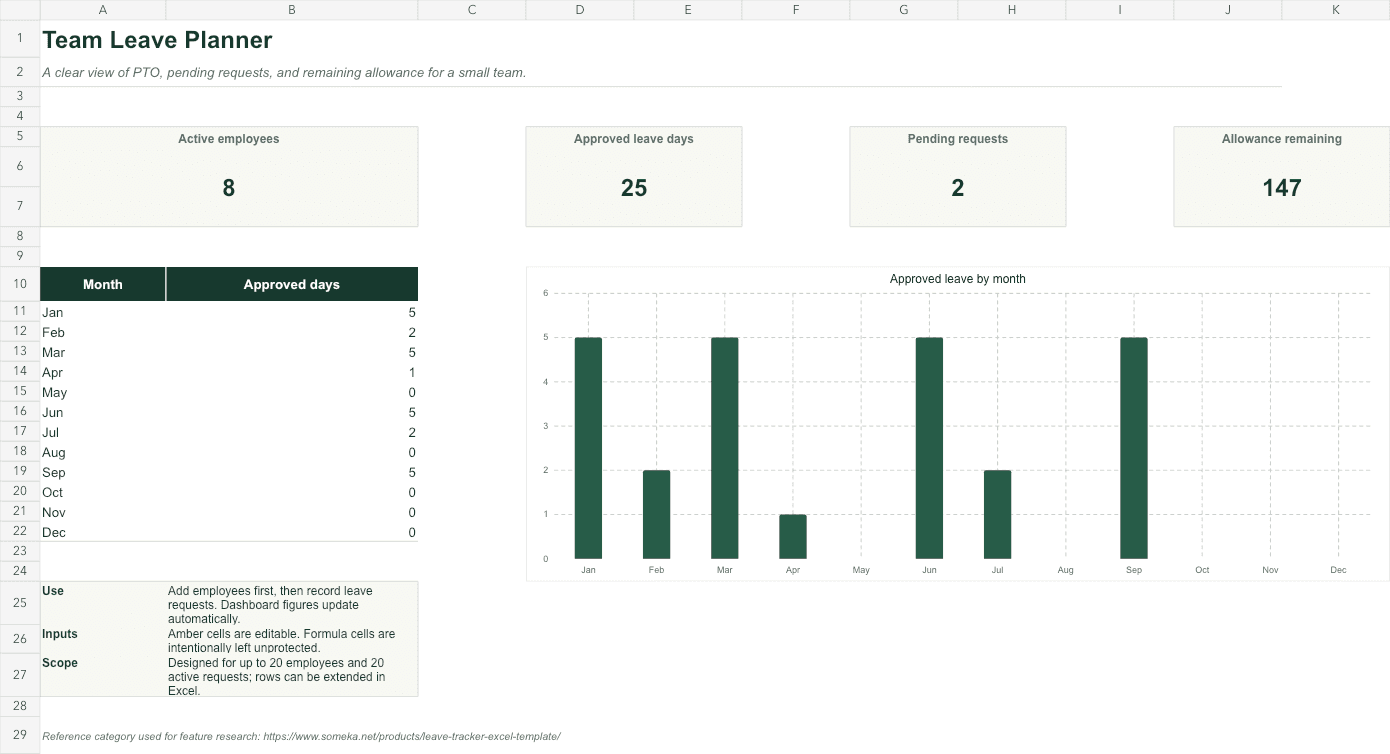
A PTO tracker has two jobs: make future absences visible and keep each employee's balance trustworthy. Problems begin when those jobs are mixed into one giant calendar full of manually colored cells.
A cleaner workbook separates people, leave records, policy settings, and summary views. The calendar becomes an output, not the database.
Free tutorial for small teams and spreadsheet users. Examples use English-language formulas. Modern Excel is the workbook’s target app; Google Sheets imports require feature checks. Optional templates are separate one-time purchases with their own capabilities, limits, and terms on the linked product page.
01
Write the policy rules down first
The spreadsheet cannot resolve an unclear policy. Decide which leave types are tracked, whether weekends and holidays count, who approves requests, and whether employees can carry unused days into the next period.
Put those choices on a visible Settings sheet. Avoid burying policy assumptions inside long formulas that only the workbook creator understands.
- Annual allowance and carryover rule
- Working week and holiday calendar
- Leave types and whether each affects balance
- Approval statuses and approver names
02
Separate employees from leave requests
Create an Employees table with one row per person and a Leave Log with one row per request. Join them with a stable employee ID rather than an employee name, because names can be duplicated or changed.
The log should record employee ID, leave type, start date, end date, calculated working days, status, and notes. Keep approval history outside the notes field if it must be audited.
=NETWORKDAYS([@[Start date]],[@[End date]],Holidays[Date])03
Calculate balances from approved records
A balance should be derived from the log, never typed over. Sum only the leave types that consume allowance and only the statuses your policy considers final. Pending requests can be shown as a separate commitment.
Add a reconciliation check: opening allowance minus approved leave should equal the displayed remaining balance. If it does not, make the exception visible instead of hiding it with IFERROR.
=SUMIFS(LeaveLog[Days],LeaveLog[Employee ID],[@[Employee ID]],LeaveLog[Status],"Approved")04
Design the dashboard for planning, not surveillance
Managers need upcoming absences, team overlap, requests awaiting a decision, and remaining allowances. They rarely need decorative charts about who takes the most leave.
Keep sensitive notes off the shared dashboard. The best leave view helps teams plan coverage while revealing only what colleagues need to know.
- Absences in the next 30 days
- Overlapping leave by team
- Pending approvals
- Low or negative balances
Follow the example
Approve Theo’s one-day request
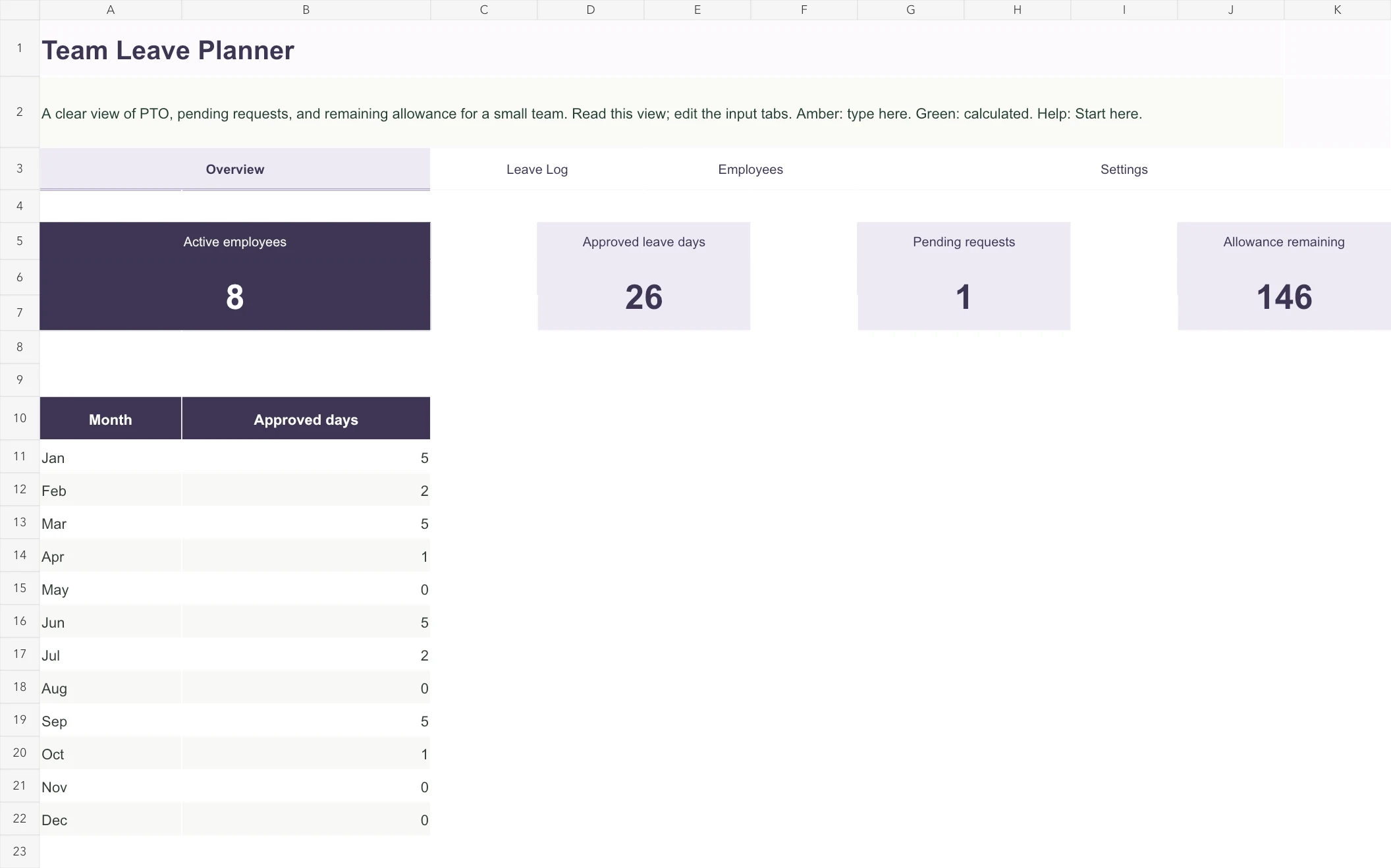
Changing Theo Grant’s October 9 request from Pending to Approved changes approved days from 25 to 26, pending requests from 2 to 1, and total allowance remaining from 147 to 146.
Fictional example using the shipped Excel workbook. Worksheet captures show the example inputs and results; follow-along changes are described below.
Watch the worked example
18 seconds. Live workbook capture in Apple Numbers, sped up with pauses removed. Fictional data; no audio. The downloadable file is an Excel .xlsx workbook. Use full screen to inspect the cells.
On-screen changes and calculated results are described in the English captions and transcript.
Read the video transcript
- 0:00 Before approval: 25 approved days, 2 pending requests, 147 days remaining.
- 0:03 Find Theo Grant’s one-day October 9 request on Leave Log row 14.
- 0:07 Change H14 from Pending to Approved. Days use inclusive calendar dates.
- 0:10 Dashboard updates: 26 approved days, 1 pending request, 146 days remaining.
Review the employee allowances
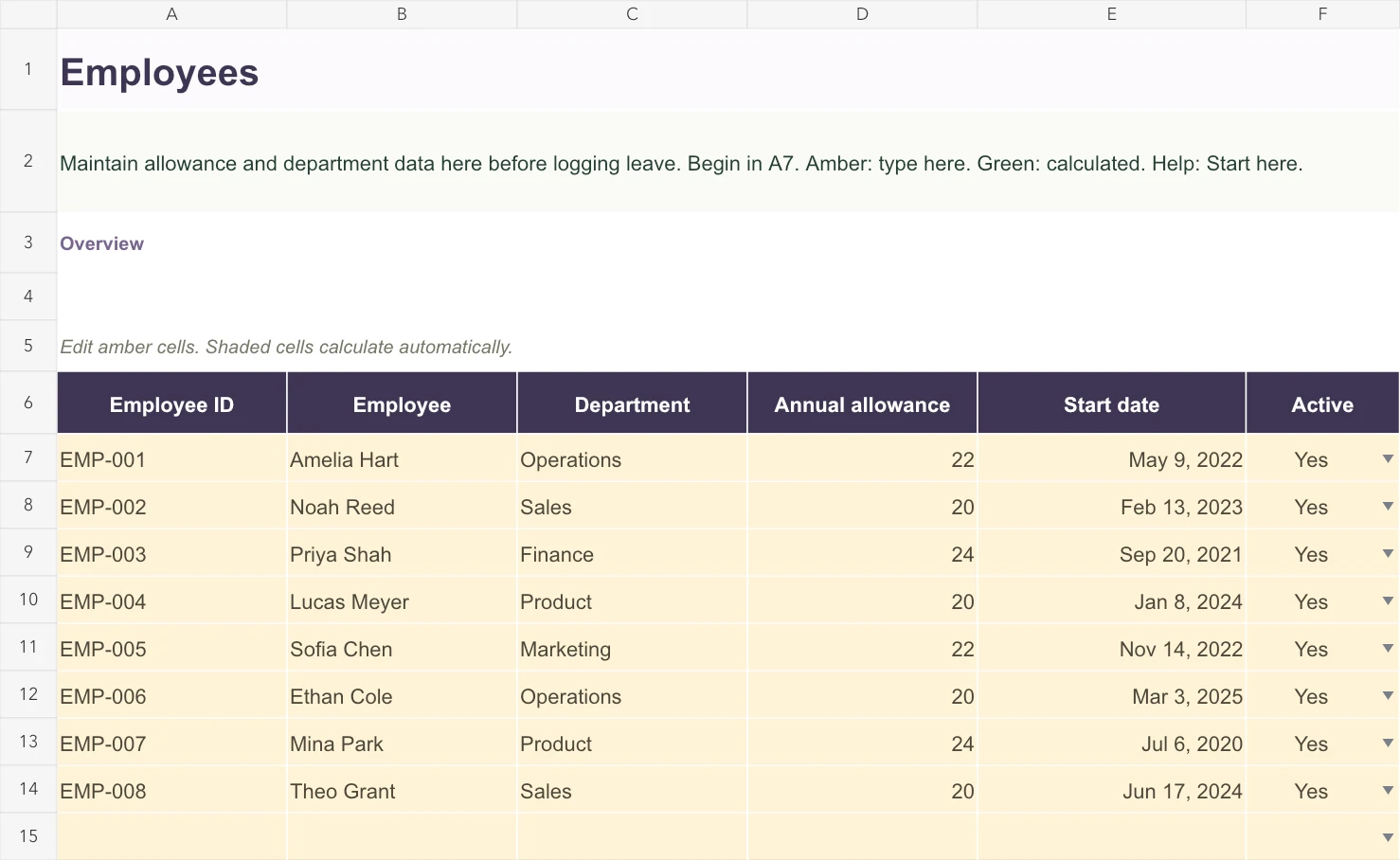
The fictional directory contains eight employees with a combined allowance of 172 days.
- On Employees, review names in B7:B14 and annual allowances in D7:D14. Replace these sample inputs before using the workbook for your team.
 Open full-size worksheet
- Employees!D7:D14 totals 172 days of example allowance.
Approve one request
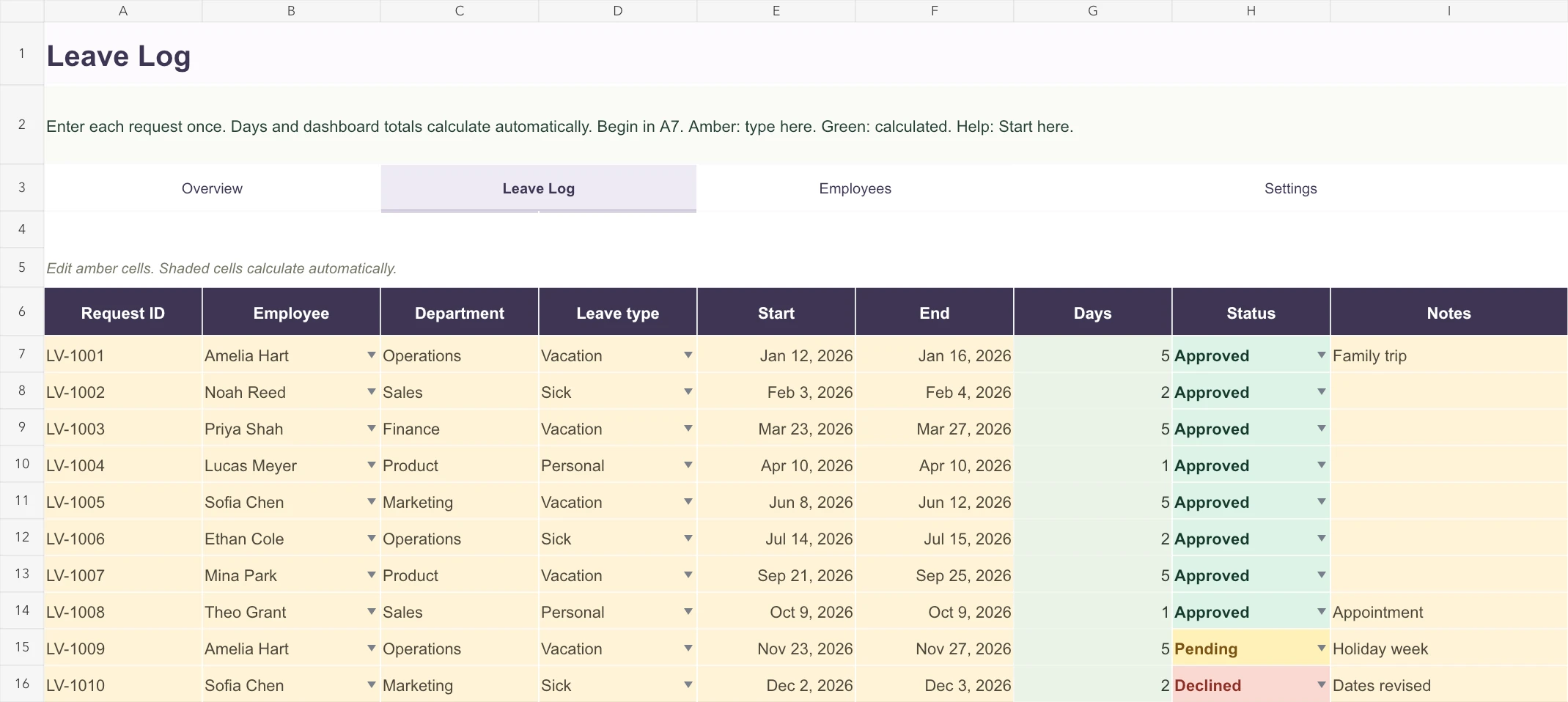
Theo Grant’s request LV-1008 is for October 9, 2026.
- In Leave Log!H14 change Pending to Approved. G14 remains 1 because start and end are the same day.
- Approval is a record you maintain. The workbook does not send an approval or notify Theo.
 Open full-size worksheet
- H14 is the editable approval status.
- G14 calculates one inclusive calendar day.
Check the team summary
The dashboard reflects the approval without changing the employee directory.
- Check Dashboard!D6 = 26 approved days, G6 = 1 pending request, and J6 = 146 allowance remaining.
- The remaining total is 172 − 26. Review individual entitlement separately before approving further leave.
 Open full-size worksheet
- D6, G6, and J6 show the effect of the status change.
Building your own? Apply the formulas and structure in this tutorial. The optional workbook uses the exact cells and limits shown in this example.
Evaluate the prepared workbook Already have it? Follow the workbook instructionsSkip the blank-sheet setup
Team Leave Planner
Use a ready-made leave log, employee directory, editable settings, and summary dashboard for a small team.FAQ
Common questions
What columns should a PTO tracker have?
At minimum: employee ID, employee name, leave type, start date, end date, working days, status, and approver. Keep allowance and team details in a separate employee table.
How do I exclude weekends and holidays in Excel?
Use NETWORKDAYS for a Monday–Friday workweek, or NETWORKDAYS.INTL for custom weekends, and pass a range containing company holiday dates.
Is Excel suitable for PTO tracking?
It works well for a small team with a clear owner and modest approval needs. Move to a dedicated HR system when access controls, audit history, payroll integration, or multi-country rules become essential.