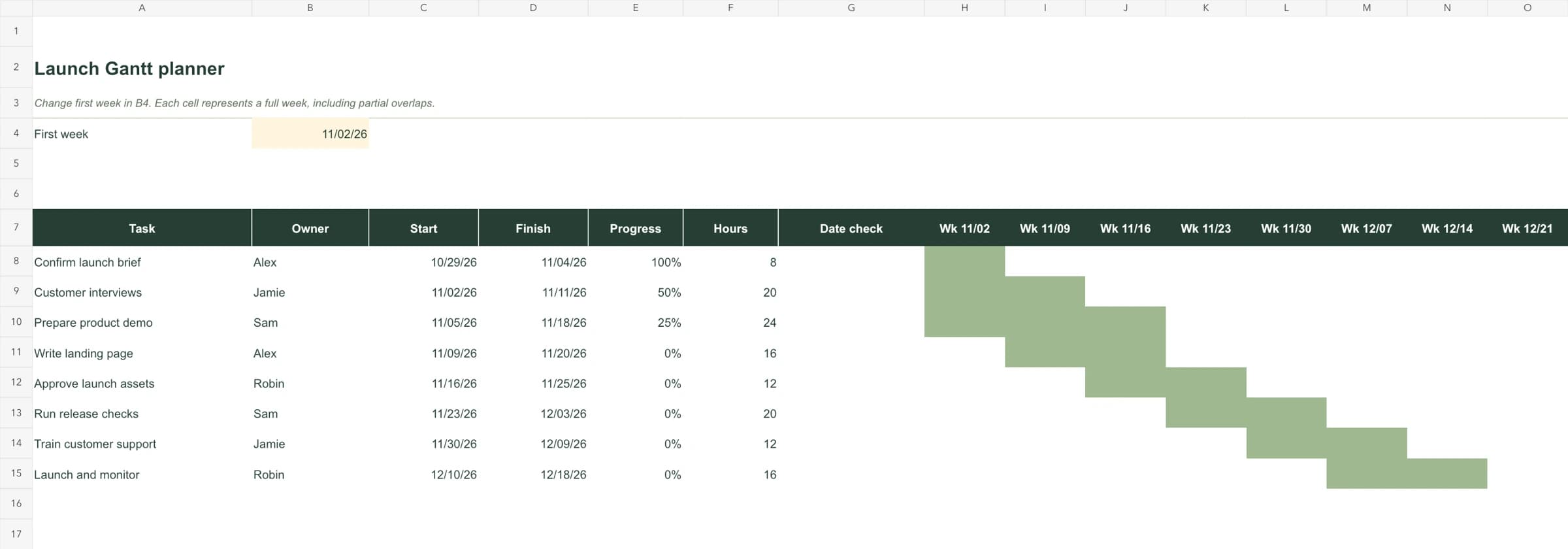
Weekly Gantt cells represent intervals, not single dates. A task that starts on Thursday still belongs in that week's cell. Testing only whether Monday is between the task dates can hide it.
The overlap rule is simple: a task is visible when its start is no later than the week's end and its finish is no earlier than the week's start.
Free tutorial for small teams and spreadsheet users. Examples use English-language formulas. Modern Excel is the workbook’s target app; Google Sheets imports require feature checks. Optional templates are separate one-time purchases with their own capabilities, limits, and terms on the linked product page.
01
Keep the task register authoritative
Create Task, Owner, Start, Finish, and Progress in A7:E7. Enter the first task in row 8. Use actual spreadsheet dates in C and D, and a numeric percentage in E. Each row should describe one deliverable with one owner.
Enter a first visible Monday in H7 and put =H7+7 in I7. Copy that header formula across eight weeks. Format the dates as short week labels. Changing the first Monday should move the visible window without changing any task's own dates.
02
Use an interval-overlap rule
Select the timeline cells beginning at H8 and add a formula-based conditional formatting rule. H$7 is the current week's start. Adding six gives the inclusive Sunday. Anchoring task columns C and D keeps the rule attached to the same task while it fills right.
For a week starting November 2, a November 5–6 task must be colored. So must an October 29–November 4 task. A November 9 task should first appear in the following week.
=AND(ISNUMBER($C8),ISNUMBER($D8),$D8>=$C8,H$7<=$D8,H$7+6>=$C8)03
Make date problems visible
Use a separate date-check column to distinguish an incomplete task from work outside the visible period. A blank timeline can mean either. Flag missing dates and a finish before the start instead of silently presenting an empty schedule.
For one-day milestones, use equal start and finish dates. This weekly grid indicates which week contains the milestone; it does not show the exact day visually. Keep the dates next to the task for that detail.
=IF(A8="","",IF(OR(C8="",D8=""),"Add dates",IF(D8<C8,"Check dates","")))04
Review workload alongside dates
A sequence can fit the calendar while assigning one owner more work than they can do. Summarize planned hours by owner and status using the workload pivot, then discuss overlaps in the Gantt. Total planned hours are not the same as weekly capacity or remaining hours.
Test the first, middle, and last visible weeks. Move one task beyond the last week and confirm the dates remain visible even when the bars disappear. This plan follows manually entered dates; it does not move dependencies or calculate a critical path.
FAQ
Common questions
Should I use WORKDAY for this weekly grid?
Only if task dates need working-day scheduling. The overlap test uses calendar weeks. Holiday-aware duration and dependency scheduling require separate rules.
Can I use the same rule in Google Sheets?
The interval logic uses common functions. Recreate or review the conditional formatting rule after import, with the first selected cell matching H8.