Save your own copy
Use File > Save As in Excel. Keep the original workbook for next time.
Your getting-started guide
Record employee expenses and mileage, review claim-level decisions, and track partial reimbursement payments. A selected-claim form brings matching expense lines together for review or PDF export.
Your first five minutes
Set your organization in B4, mileage rate in B5, and receipt threshold in E5. Create claim IDs and employee details in A8:D27, then record decisions and cumulative payments.
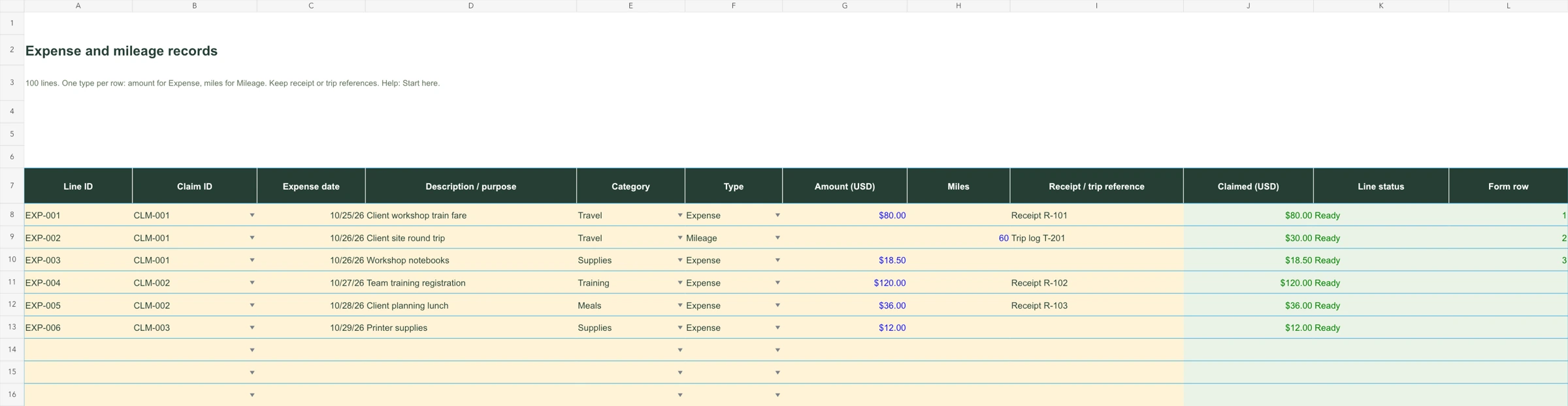
See the fields in ClaimsReplace example expense lines in A8:I107. Amount is used for Expense; miles × the current mileage rate is used for Mileage. All lines must match a unique claim ID.
See the fields in ExpensesSelect a claim in B5 and page in B6. Print each page shown in B7. Resolve input or receipt warnings, review the claim, and export only this sheet as PDF. Record actual payments in Claims; the workbook does not send money.
See the fields in Claim formAmber: your entries. Type your information here.
Green: calculated results. Keep these formulas.
Status colors can change as you work. Use the field instructions below to confirm what you can edit.
Follow along in your copy
The workbook already contains illustrative records so you can see how it works. Find these cells, make a small change following the first steps, and review the result before entering your own information.
These are sample values. Replace or clear the amber example cells before relying on your totals.
 Open the worksheet preview
New to spreadsheets?
Use File > Save As in Excel. Keep the original workbook for next time.
Click a tab at the bottom to open it. B7 means column B, row 7.
Click an amber cell, type, and press Enter. Press Tab to move right.
Use the arrow on a validated cell to choose one of the listed options.
Use real dates and numeric amounts. Enter 50% for half. Keep the existing formats.
Use Ctrl+Z on Windows or Command+Z on Mac. Keep formulas, which start with =.
Keep this beside your workbook
Select a claim ID and review the employee, decision, totals, payments, and matching expense lines. Select the page number in B6 and print only Claim form. Each page displays 10 lines.
| Field and cells | What to do |
|---|---|
| Selected claim (B5) | Choose an existing unique claim ID. The form lists all matching expense lines in source order. |
| Claim total (A10) | Total of valid expenses for the selected claim. |
| Remaining (E10) | Claim total minus cumulative payment, regardless of approval. |
| Approved outstanding (G10) | Remaining balance only when the decision is Approved. |
Maintain 20 unique claims, employees, submission dates, approval decisions, payments, and calculated outstanding balances.
| Field and cells | What to do |
|---|---|
| Organization (B4) | Name printed on the claim form. |
| Mileage rate (B5) | Your organization’s USD per mile, not a prescribed tax rate. Changing it recalculates all mileage lines. |
| Receipt threshold (E5) | Expense lines at or above this amount need a receipt reference; this is an editable company policy. |
| Claim ID (A8) | Unique stable identifier. |
| Employee (B8) | Person requesting reimbursement. |
| Submitted (C8) | Real submission date; expense dates must be on or before this date. |
| Decision (D8) | Draft, Submitted, Approved, or Rejected. |
| Paid to date (E8) | Cumulative USD actually paid; enter 0 for none. |
| Payment date (F8) | Latest actual payment date, required when paid amount is positive. |
Record 100 expense or mileage lines with claim IDs, dates, descriptions, categories, and receipt references.
| Field and cells | What to do |
|---|---|
| Line ID (A8) | Unique expense-line reference. |
| Claim ID (B8) | Must match one existing claim. |
| Expense date (C8) | Real date, on or before submission. |
| Description (D8) | Business purpose or expense details. |
| Category (E8) | Travel, Meals, Supplies, Training, or Other. |
| Type (F8) | Expense or Mileage. |
| Amount (G8) | USD amount for Expense. Leave blank for Mileage. |
| Miles (H8) | Miles for Mileage. Leave blank for Expense. |
| Receipt / evidence (I8) | Receipt reference when policy requires it; trip evidence is always required for Mileage. |
Make it part of your routine
All populated records are fictional. Replace or clear amber examples before using totals.
20 claims and 100 expense lines in USD. Manual decisions and cumulative payment entry. Mileage uses one current editable company rate; no receipt storage, payment execution, notifications, or statutory tax-rate updates.
Leave unknown values blank. Enter 0 for a confirmed zero. Read missing-input messages before using a result.
Beyond prepared capacity, extend formulas, validation, summary ranges, and chart ranges together.