Save your own copy
Use File > Save As in Excel. Keep the original workbook for next time.
Your getting-started guide
Discuss internal strengths and weaknesses alongside external opportunities and threats. Turn the findings into specific, owned actions.
Your first five minutes
Replace the fictional factors and evidence in the four amber quadrants.
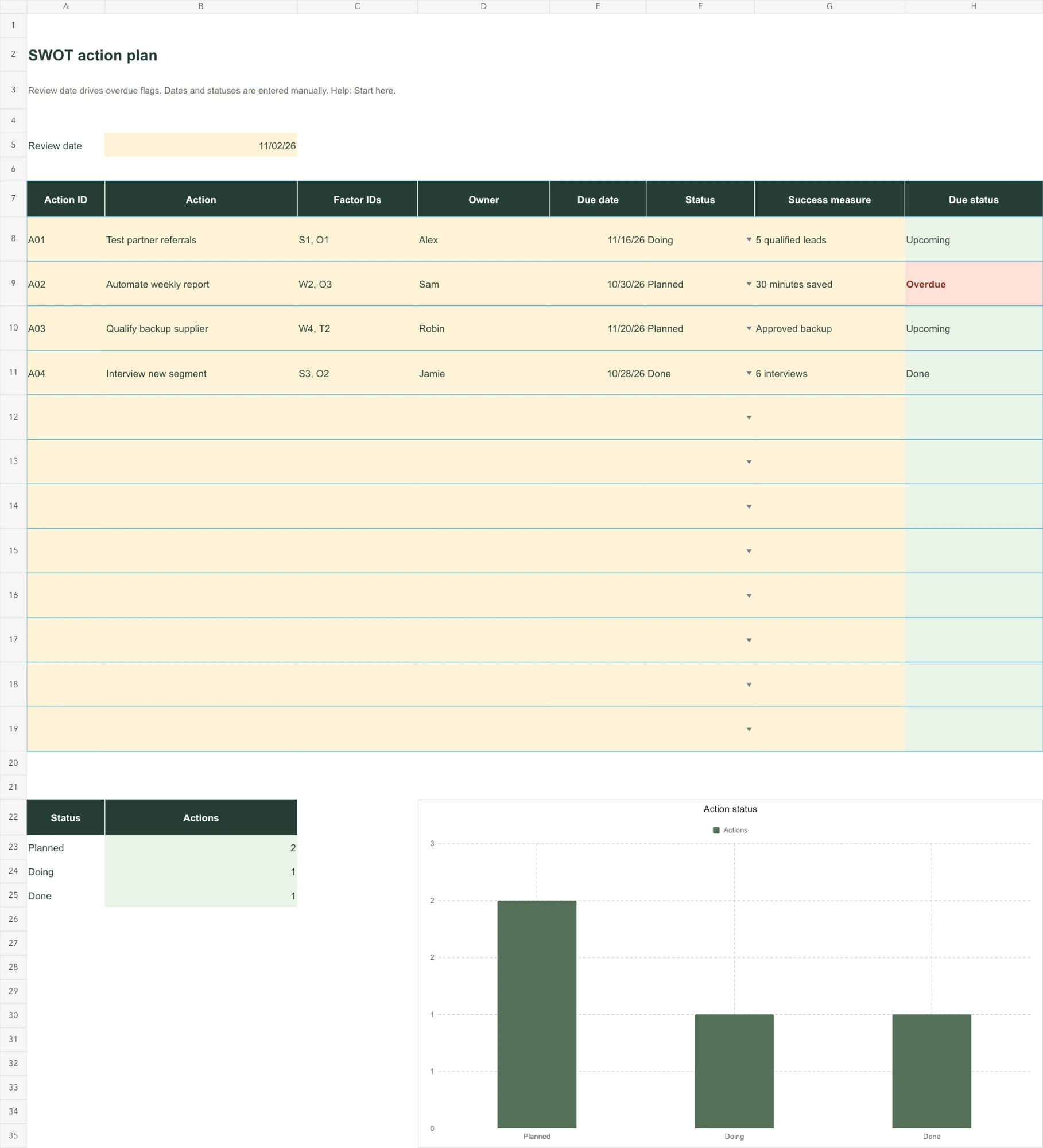
See the fields in SWOTReplace the example actions in rows 8–19. Cite the SWOT factor IDs that support each action.
See the fields in ActionsReview due dates and the completion chart. Update the review date in B5 each meeting.
See the fields in ActionsAmber: your entries. Type your information here.
Green: calculated results. Keep these formulas.
Status colors can change as you work. Use the field instructions below to confirm what you can edit.
Follow along in your copy
The workbook already contains illustrative records so you can see how it works. Find these cells, make a small change following the first steps, and review the result before entering your own information.
These are sample values. Replace or clear the amber example cells before relying on your totals.
 Open the worksheet preview
New to spreadsheets?
Use File > Save As in Excel. Keep the original workbook for next time.
Click a tab at the bottom to open it. B7 means column B, row 7.
Click an amber cell, type, and press Enter. Press Tab to move right.
Use the arrow on a validated cell to choose one of the listed options.
Use real dates and numeric amounts. Enter 50% for half. Keep the existing formats.
Use Ctrl+Z on Windows or Command+Z on Mac. Keep formulas, which start with =.
Keep this beside your workbook
Edit the four quadrants, keeping internal factors separate from external conditions.
| Field and cells | What to do |
|---|---|
| Factor (B7) | Describe one internal strength. Use the ID S1 when an action draws on it. |
| Evidence (C7) | Record a dated source that supports the factor. |
| Weakness (F7) | Describe an internal limitation. |
| External factors (B15:F18) | Opportunities and threats describe external conditions. |
Connect actions to SWOT factors and assign an owner, due date, and status.
| Field and cells | What to do |
|---|---|
| Action ID (A8) | Use a unique stable identifier. |
| Action (B8) | Describe a specific step. |
| Factor IDs (C8) | Reference the relevant quadrant IDs. |
| Owner (D8) | Assign one accountable person. |
| Due date (E8) | Enter a real date. |
| Status (F8) | Choose Planned, Doing, or Done. |
Make it part of your routine
All populated records are fictional. Replace or clear amber examples before using totals.
Four factors per quadrant and 12 prepared actions. Evidence, dates, and statuses are entered manually. No market research feed.
Leave unknown values blank. Enter 0 for a confirmed zero. Read any missing-input messages before using a result.
Beyond prepared capacity, extend formulas, dropdowns, chart and summary ranges, and any pivot source range.