A reorder point is a trigger based on expected demand while you wait for replenishment. It is not the same as the quantity to buy. Keep the trigger and the target stock level separate.
This example assumes one consistent unit per SKU and demand and lead time measured in calendar days. The output is a suggestion for review, not an automatically placed purchase order.
Free tutorial for small teams and spreadsheet users. Examples use English-language formulas. Modern Excel is the workbook’s target app; Google Sheets imports require feature checks. Optional templates are separate one-time purchases with their own capabilities, limits, and terms on the linked product page.
01
Collect inputs in matching units
Create SKU, On hand, Daily demand, Lead time days, Safety stock, Reorder point, Stock cover days, and Target stock in A1:H1. Use a unique SKU and one unit such as pieces or cases throughout its row.
For SKU A, enter 100 units on hand, daily demand of 8, lead time of 10 days, safety stock of 30, and target stock of 200. Verify that lead time includes the time between placing the order and having usable stock.
02
Calculate the replenishment trigger
Expected lead-time demand is daily demand multiplied by lead time. Add safety stock to obtain the reorder point. The example reaches 110 units, so 100 on hand is below the trigger.
A missing demand, lead time, or safety-stock input should leave the trigger unavailable. A confirmed safety stock of zero remains valid. Revisit the assumptions when demand or supplier timing changes.
=IF(OR(C2="",D2="",E2=""),"",C2*D2+E2)03
Show cover without dividing by zero
Stock cover divides current units by daily demand. The example has 12.5 days of cover. When demand is zero, cover is not a meaningful finite number, so show n.a. rather than an error or zero days.
The cover figure assumes constant demand. It does not account for a promotion, seasonal peak, damaged inventory, or stock reserved for an existing order unless you explicitly adjust the inputs.
=IF(OR(B2="",C2=""),"",IF(C2=0,"n.a.",B2/C2))04
Separate the suggested order from the trigger
For a simple on-hand-only example, target less current stock gives a 100-unit replenishment quantity. A production purchasing process should also account for units already on order, committed demand, supplier pack sizes, and minimum order quantities.
Test exactly at the reorder point, one unit below it, and a zero-demand SKU. Explain whether your trigger uses less than or less than or equal to the threshold. Confirm the latest stock count before placing an order.
Follow the example
Replenish the thermal-label stock
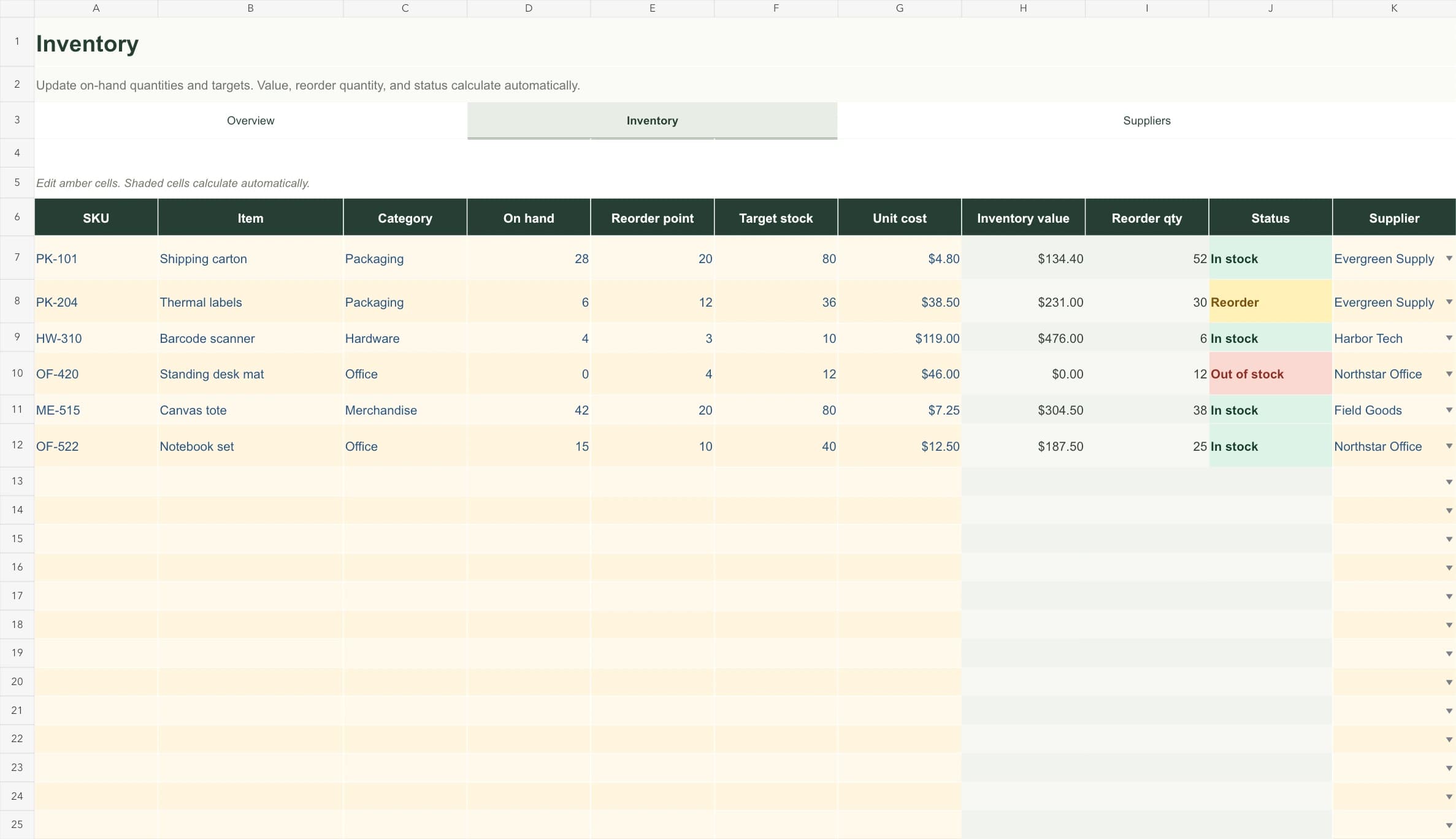
Thermal labels have 6 cases on hand, a reorder point of 12, and target stock of 36. The workbook flags Reorder and suggests 30 cases. After receipt, entering 36 on hand changes the suggestion to 0 and the status to In stock.
Fictional example using the shipped Excel workbook. Worksheet captures show the example inputs and results; follow-along changes are described below.
Watch the worked example
17 seconds. Live workbook capture in Apple Numbers, sped up with pauses removed. Fictional data; no audio. The downloadable file is an Excel .xlsx workbook. Use full screen to inspect the cells.
On-screen changes and calculated results are described in the English captions and transcript.
Read the video transcript
- 0:00 Thermal labels: 6 on hand, reorder point 12, target 36; suggested quantity 30.
- 0:05 After receiving 30 cases, enter 36 in Inventory!D8. The suggestion becomes 0: In stock.
- 0:09 Dashboard: 0 Reorder SKUs. The separate Out of stock count remains 1.
Keep supplier details beside the stock plan
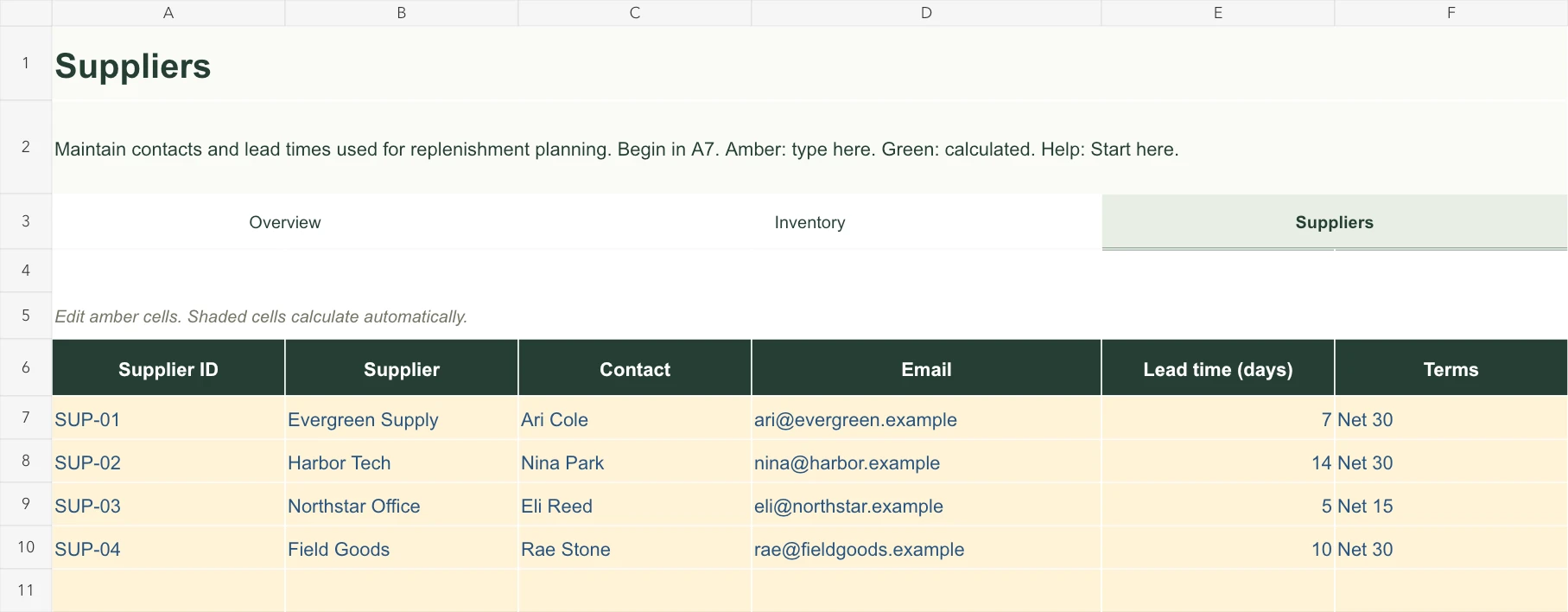
Evergreen Supply is the fictional supplier for the thermal labels.
- On Suppliers, row 7 records Evergreen Supply, a seven-day lead time, and Net 30 terms. Use this reference when deciding your own reorder point.
 Open full-size worksheet
- Suppliers!E7 is reference information, not a formula input for reorder point.
Read the replenishment suggestion
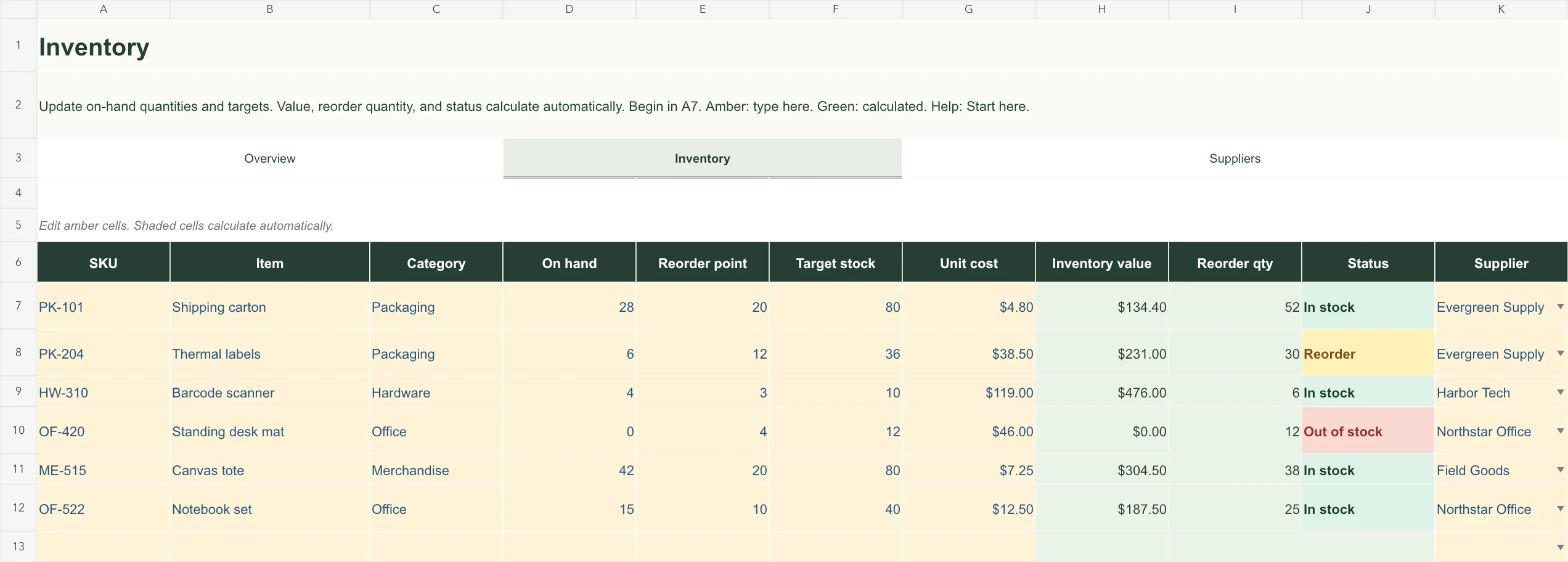
Find SKU PK-204 on Inventory row 8.
- D8 = 6 cases on hand, E8 = 12 reorder point, and F8 = 36 target stock.
- J8 is Reorder because 6 ≤ 12. I8 is 30 because 36 − 6 = 30. The example’s units are cases, so use matching units when updating stock.
 Open full-size worksheet
- D8:F8 contains the three manual stock-planning inputs.
- I8:J8 calculates 30 to replenish and Reorder status.
Update stock after receiving the goods
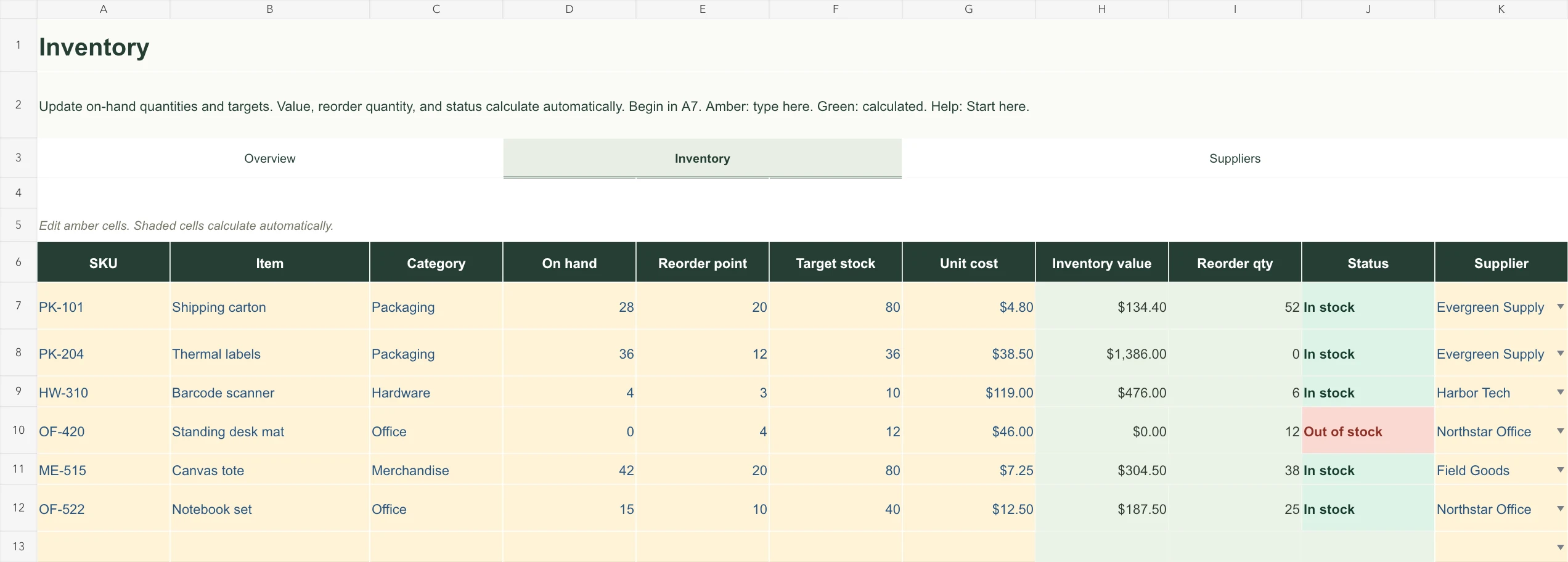
Receiving 30 cases brings the physical count from 6 to 36.
- Change Inventory!D8 to 36 after confirming receipt. I8 changes to 0 and J8 to In stock.
- The dashboard now has zero Reorder SKUs, while the separate Out of stock count remains 1. Receiving this item does not resolve the desk-mat stockout.
 Open full-size worksheet
- D8 is now 36. I8 and J8 update from that entry.
Building your own? Apply the formulas and structure in this tutorial. The optional workbook uses the exact cells and limits shown in this example.
Evaluate the prepared workbook Already have it? Follow the workbook instructionsSkip the blank-sheet setup
Inventory Reorder Planner
SKU-level stock, reorder calculations, status alerts, and supplier details.FAQ
Common questions
Does safety stock come from the formula?
Here it is an editable assumption. Estimating it statistically requires demand variability, service targets, and lead-time data that this simple example does not supply.
Does on-hand stock include incoming orders?
No. Track incoming quantities separately if you need an inventory-position model, so you do not order the same replenishment twice.