Save your own copy
In Excel, use File > Save As and give your copy a name. Save again after making changes. Keep a fresh original for next time.
Your getting-started guide
Prepare a purchase order and track it through approval, delivery, and payment.
Your first five minutes
Replace the vendor details, then update SKU descriptions, prices, and tax rates in Items.
See the fields in VendorsSet the order number, dates, requester, and vendor. Choose SKUs and enter quantities in the item rows.
See the fields in Purchase OrderRecord the order and total manually, then update approval, delivery, and payment statuses.
See the fields in PO RegisterAmber: your entries. Type your information here.
Green: calculated results. Keep these formulas.
Status colors can change as you work. Use the field instructions below to confirm what you can edit.
Follow along in your copy
The workbook already contains illustrative records so you can see how it works. Find these cells, make a small change following the first steps, and review the result before entering your own information.
These are sample values. Replace or clear the amber example cells before relying on your totals.
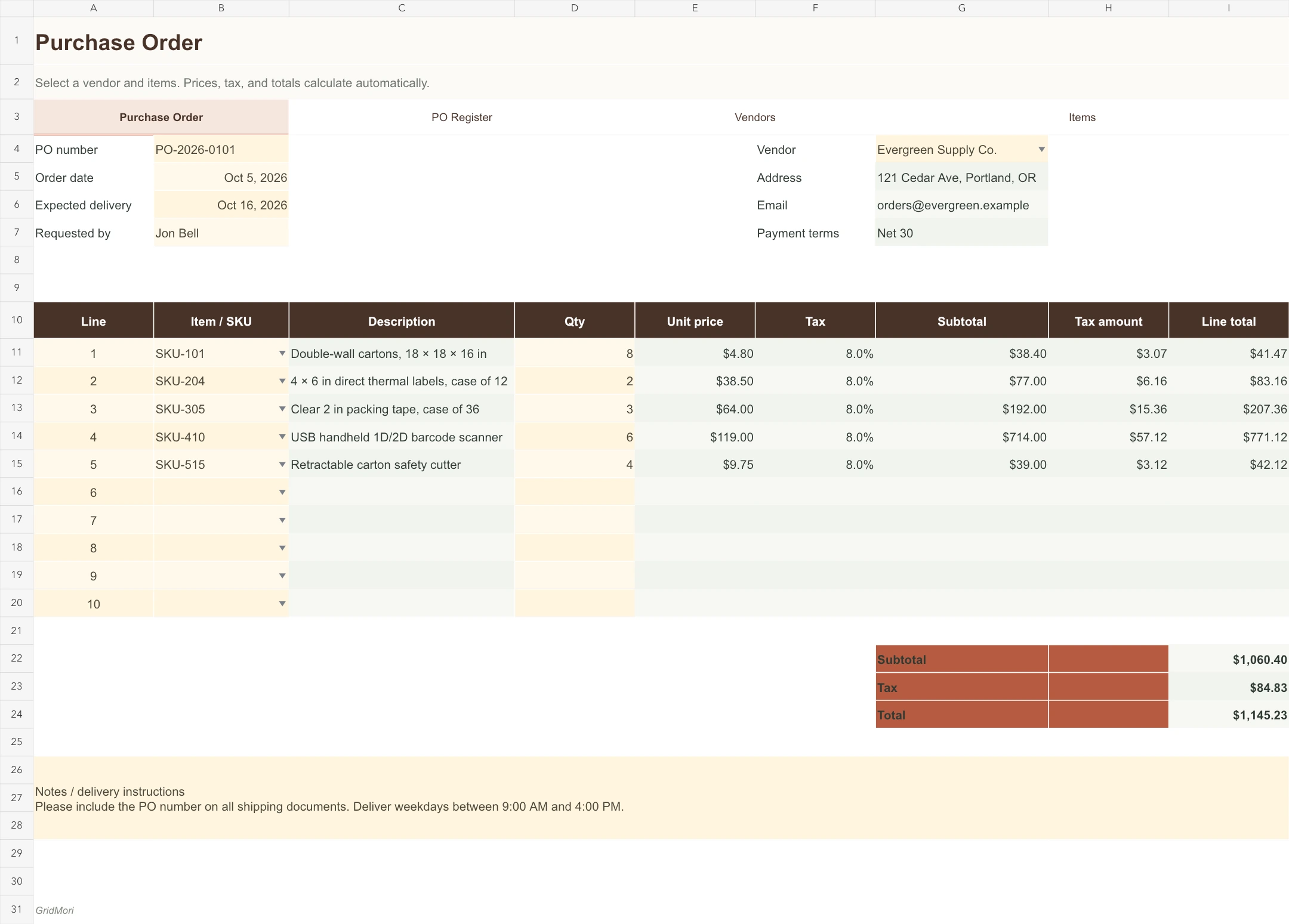 Open the worksheet preview
New to spreadsheets?
In Excel, use File > Save As and give your copy a name. Save again after making changes. Keep a fresh original for next time.
The names along the bottom are tabs. Click one to open it. A cell is one box: B7 means column B, row 7.
Click an amber cell, type, and press Enter. Press Tab to move right. Double-click a cell to edit part of its text.
Click a cell with a dropdown, then click its small arrow and choose a listed option. The field notes list the available choices.
Enter dates such as 11/06/2026 and amounts as numbers, such as 1250. Enter 50% for half. Keep the existing number formats.
Press Ctrl+Z on Windows or Command+Z on Mac immediately after a mistake. A formula starts with = in the formula bar; keep it in place.
Keep this beside your workbook
Select a vendor and items. Prices, tax, and totals calculate automatically. Editable cells begin at B4. Use the prepared amber rows for new records.
| Field and cells | What to do |
|---|---|
| PO number (B4) | Replace this amber setting with your own value. Check the related dates and inputs when changing the period. |
| Vendor (G4) | Replace this amber setting with your own value. Check the related dates and inputs when changing the period. |
| Order date (B5) | Replace this amber setting with your own value. Check the related dates and inputs when changing the period. |
| Expected delivery (B6) | Replace this amber setting with your own value. Check the related dates and inputs when changing the period. |
| Requested by (B7) | Replace this amber setting with your own value. Check the related dates and inputs when changing the period. |
| Line A11:A26 | Replace the example with your own information for this record. |
| Item / SKU B11:B20 | Replace the example with your own information for this record. Use the dropdown choices from Items!A7:A26. |
| Qty D11:D20 | Replace the example with your own information for this record. |
Track approval, delivery, and payment status for every purchase order. Editable cells begin at A10. Use the prepared amber rows for new records.
| Field and cells | What to do |
|---|---|
| PO number A10:A39 | Replace the example with your own information for this record. |
| Order date B10:B39 | Enter a real date such as 11/06/2026. Use the same reporting period as the rest of the record. |
| Vendor C10:C39 | Enter the name or label for this record. Use exactly the same spelling on other tabs that refer to it. |
| Requester D10:D39 | Replace the example with your own information for this record. |
| Department E10:E39 | Replace the example with your own information for this record. |
| Total F10:F39 | Replace the example with your own information for this record. |
| Expected G10:G39 | Replace the example with your own information for this record. |
| Approval H10:H39 | Replace the example with your own information for this record. Choose: Draft, Approved, Declined. |
| Delivery I10:I39 | Replace the example with your own information for this record. Choose: Awaiting, Partial, Received. |
| Payment J10:J39 | Replace the example with your own information for this record. Choose: Pending, Paid. |
Maintain contact and payment terms used by the purchase-order form. Editable cells begin at A7. Use the prepared amber rows for new records.
| Field and cells | What to do |
|---|---|
| Vendor ID A7:A26 | Enter the name or label for this record. Use exactly the same spelling on other tabs that refer to it. |
| Vendor B7:B26 | Enter the name or label for this record. Use exactly the same spelling on other tabs that refer to it. |
| Address C7:C26 | Replace the example with your own information for this record. |
| Email D7:D26 | Replace the example with your own information for this record. |
| Terms E7:E26 | Replace the example with your own information for this record. |
| Tax ID F7:F26 | Replace the example with your own information for this record. |
Set reusable descriptions, prices, and tax rates for purchasing. Editable cells begin at A7. Use the prepared amber rows for new records.
| Field and cells | What to do |
|---|---|
| SKU A7:A26 | Use a consistent stock or product code. Match this code wherever the item is referenced. |
| Item B7:B26 | Replace the example with your own information for this record. |
| Description C7:C26 | Write a short, specific description that another person can act on or check. |
| Unit price D7:D26 | Enter a numeric value in the units shown by the heading. Use the example format and keep the period consistent. |
| Tax rate E7:E26 | Enter a numeric value in the units shown by the heading. Use the example format and keep the period consistent. |
| Unit F7:F26 | Replace the example with your own information for this record. |
Make it part of your routine
The filled rows are examples. Replace or clear their amber input cells so sample records do not stay in your totals. Keep formulas and headings.
The order form does not automatically append a record or send an order to a supplier. Save a copy for each issued purchase order.
Use the prepared amber area shown in the field notes. Before adding rows outside it, extend all formulas, dropdowns, charts, summaries, and any pivot source that uses that area.
Leave an unknown value blank. Enter 0 when you have confirmed there is none. If you see Complete inputs or Add dates, fill the missing source fields first.
Check for leftover example rows, missing dates or amounts, mismatched names, and text entered instead of numbers. If a formula was replaced, Undo or copy it from a fresh original.
Use your copy
PO-2026-0101 totals $1,145.23: $1,060.40 in goods plus $84.83 example tax. Enter the approved order in the register, then update its delivery and payment status as events occur.