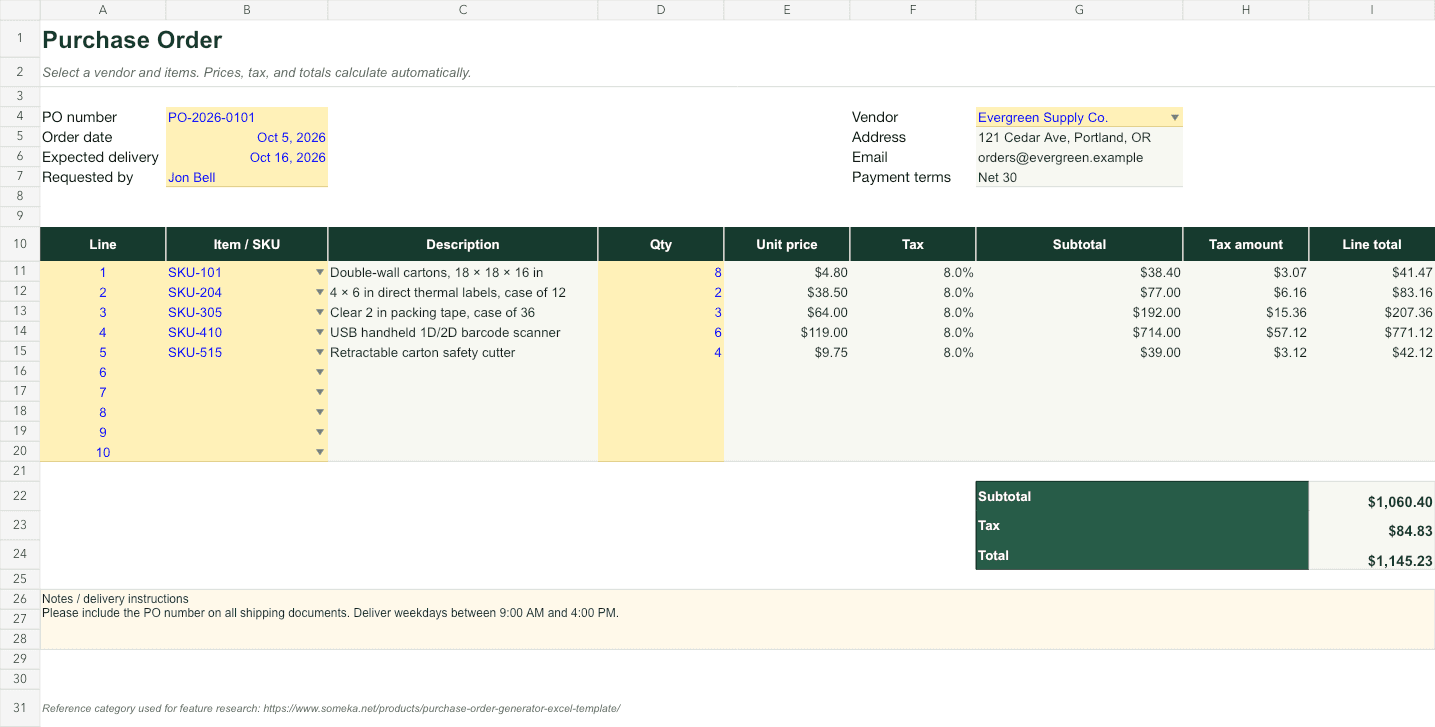
A purchase order should tell a vendor exactly what to deliver while giving your team a clear record of what was approved. A good workbook supports both jobs.
The most reliable approach separates reusable vendor and item data from the printable order, then keeps a register of every PO after it is issued.
Free tutorial for small teams and spreadsheet users. Examples use English-language formulas. Modern Excel is the workbook’s target app; Google Sheets imports require feature checks. Optional templates are separate one-time purchases with their own capabilities, limits, and terms on the linked product page.
01
Include the information that prevents disputes
Give every PO a unique number and include the order date, requester, vendor details, ship-to address, expected delivery date, payment terms, currency, and delivery instructions.
Each line should include an item or SKU, plain-language description, quantity, unit price, tax treatment, and line total. Make the grand total prominent and state whether freight is included.
02
Reuse vendor and item records
Store vendors and items on separate sheets as Excel Tables. Select them with data validation, then use lookups to populate addresses, terms, descriptions, and prices. This avoids retyping details on every order.
Prices change, so treat the item list as a default rather than a historical source. Once a PO is approved, preserve the price used on that order.
=XLOOKUP([@Item],Items[Item],Items[Unit price],"")03
Make the arithmetic inspectable
Calculate subtotal, tax, and total from the line items. Avoid rounding every intermediate calculation; instead, format the displayed result and apply your accounting policy at the final step.
Protect formula cells only when the team understands how to unprotect and maintain the workbook. Visual input cues are often more helpful than aggressive locking.
=[@Quantity]*[@[Unit price]]*(1+[@[Tax rate]])04
Track the order after it is sent
The printable PO is only the beginning. Add a register with PO number, vendor, requester, department, total, approval status, expected date, delivery status, and payment status.
That register answers the operational questions the document cannot: what is still open, what spend is committed, and which deliveries are late.
- Draft
- Awaiting approval
- Approved
- Partially received
- Received
- Closed
Follow the example
An October supply order for Evergreen Supply Co.
PO-2026-0101 totals $1,145.23: $1,060.40 in goods plus $84.83 example tax. Enter the approved order in the register, then update its delivery and payment status as events occur.
Fictional example using the shipped Excel workbook. Worksheet captures show the example inputs and results; follow-along changes are described below.
Watch the worked example
58 seconds. Live workbook capture in Apple Numbers, sped up with pauses removed. Fictional data; no audio. The downloadable file is an Excel .xlsx workbook. Use full screen to inspect the cells.
On-screen changes and calculated results are described in the English captions and transcript.
Read the video transcript
- 0:00 Vendors stores Evergreen Supply Co.’s address and Net 30 terms.
- 0:06 Items stores reusable SKU descriptions, prices, and example tax rates.
- 0:12 On Purchase Order, change the scanner quantity in D14 from 1 to 6.
- 0:17 The order recalculates: $1,060.40 goods + $84.83 tax = $1,145.23.
- 0:23 The form does not append to the register. Add the order manually in row 16.
- 0:28 Enter the dates, vendor, requester, department, and $1,145.23 total.
- 0:34 Choose Approved, Awaiting delivery, and Pending payment.
- 0:39 The spend tile rounds $11,536.88 to $11,537. Awaiting delivery is 4.
- 0:46 After receipt, choose Received. Awaiting delivery returns to 3.
- 0:49 Choose Paid after payment. Open orders stays 7 because approval is still Approved.
Set up the vendor and reusable items
The shipped fictional example already contains Evergreen Supply Co. and five supply SKUs. Follow it first, then replace the examples with your records.
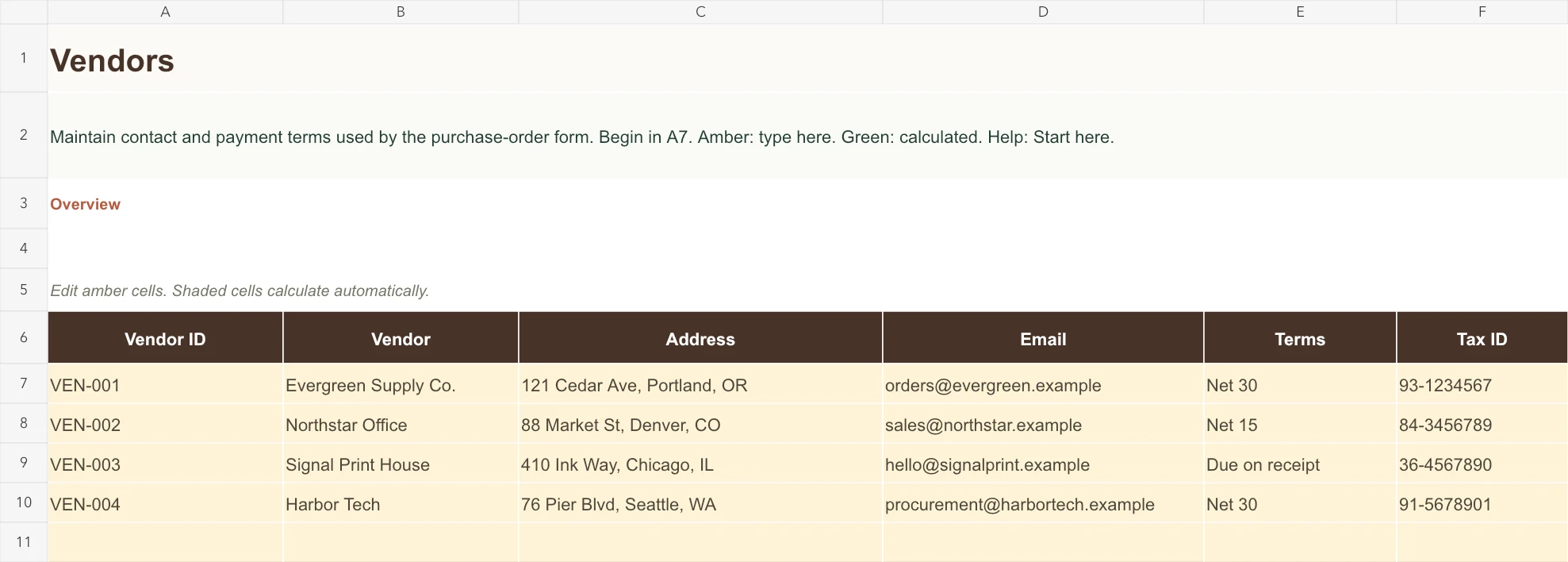
- On Vendors, find Evergreen Supply Co. in B7. Its address, email, and Net 30 terms are in C7:E7.
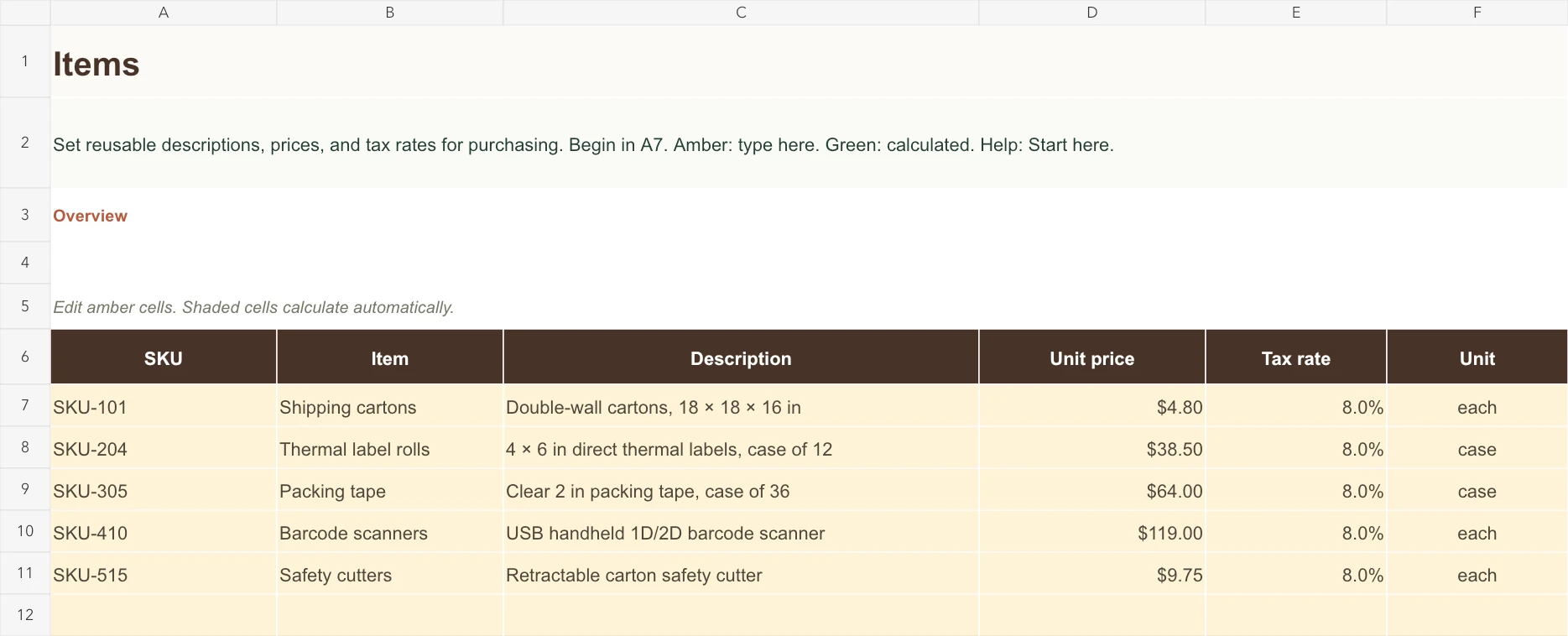
- On Items, rows 7–11 contain cartons at $4.80, labels at $38.50, tape at $64, scanners at $119, and cutters at $9.75. Each uses an illustrative 8% tax rate.
 Open full-size worksheet
- Vendors!B7:E7 supplies the selected vendor’s address, email, and terms.
 Open full-size worksheet
- Items!A7:F11 is the reusable SKU list. Prices and tax rates feed the form.
Prepare and check the complete purchase order
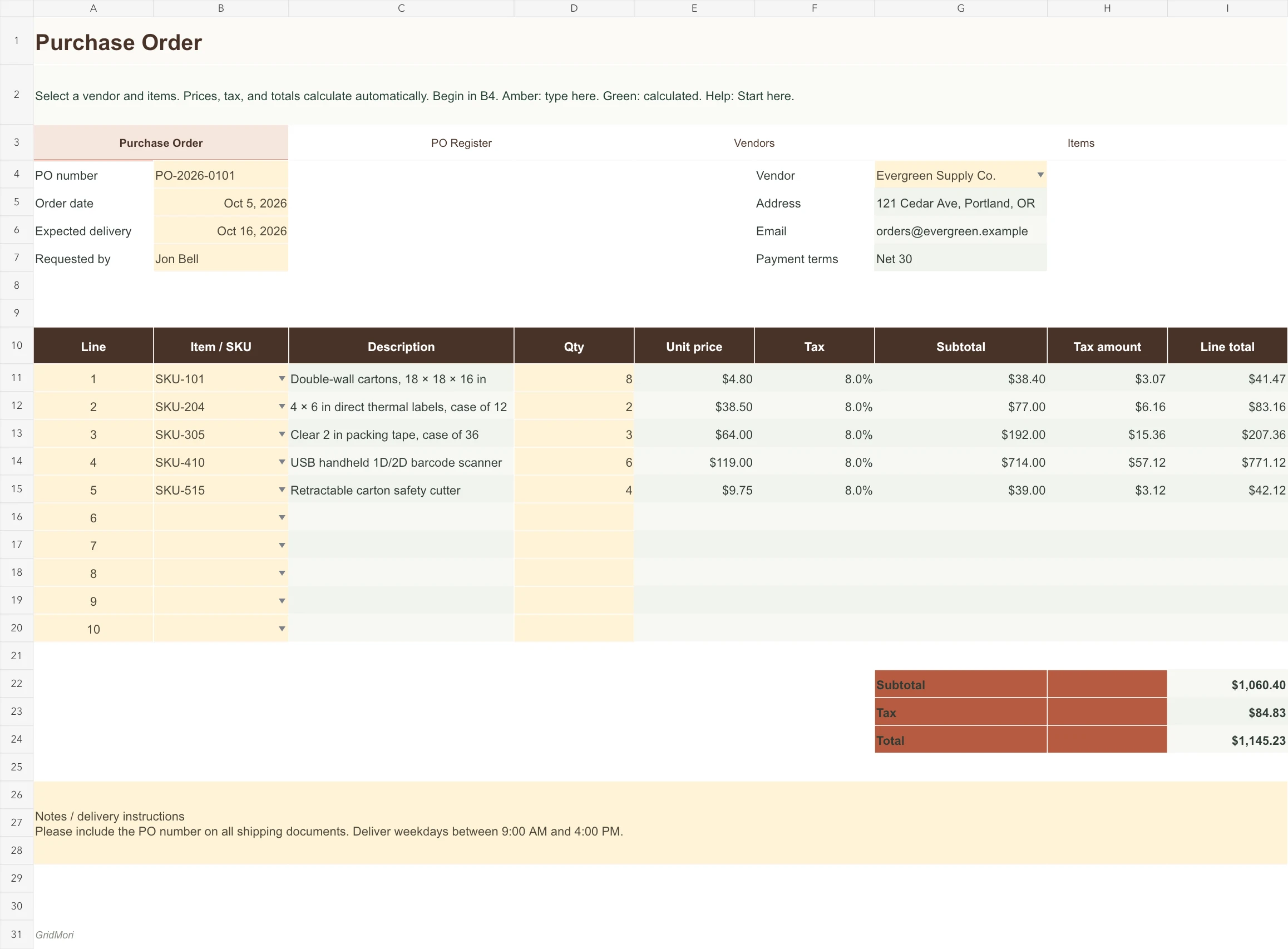
PO-2026-0101 is dated October 5, 2026, requested by Jon Bell, with delivery expected October 16. All names and dates are fictional.
- On Purchase Order, select Evergreen Supply Co. in G4. Vendor details populate G5:G7.
- Select SKU-101, SKU-204, SKU-305, SKU-410, and SKU-515 in B11:B15. Enter quantities 8, 2, 3, 6, and 4 in D11:D15.
- Check I22:I24: subtotal $1,060.40, tax $84.83, total $1,145.23. The workbook retains unrounded calculation precision and formats money to cents. Review the printed amounts against your rounding policy.
- Save the approved order separately and use Excel’s print preview or PDF export. Reusing the form changes its current content.
 Open full-size worksheet
- G4 selects the vendor; G5:G7 are calculated lookups.
- B11:B15 and D11:D15 are SKU and quantity inputs.
- I22:I24 shows subtotal, example tax, and order total.
Record the order, then follow delivery and payment
This demonstration adds the form’s order to the next empty register row. This row is a follow-along addition, not an existing record in the original download.
- In PO Register!A16:J16 enter PO-2026-0101, October 5, Evergreen Supply Co., Jon Bell, Operations, 1145.23, October 16, Approved, Awaiting, Pending.
- The six existing sample orders total $10,391.65. Adding this order makes committed spend $11,536.88 and Awaiting delivery 4. The spend tile displays whole dollars, so it reads $11,537.
- After receiving the goods, change I16 to Received. Once payment is confirmed, change J16 to Paid. Awaiting delivery returns to 3. Approval remains Approved, so the Open orders tile still counts this row.
 Open full-size worksheet
- Row 16 is the manual handoff from the order form.
- H16:J16 tracks three separate decisions: approval, delivery, payment.
- D5 totals $11,536.88; the tile rounds its display to $11,537.
Building your own? Apply the formulas and structure in this tutorial. The optional workbook uses the exact cells and limits shown in this example.
Evaluate the prepared workbook Already have it? Follow the workbook instructionsSkip the blank-sheet setup
Purchase Order Manager
Create print-ready POs from reusable vendor and item lists, then track approval, delivery, and payment in one register.FAQ
Common questions
What should a purchase order include?
Include a unique PO number, buyer and vendor details, dates, delivery address, payment terms, line items, quantities, prices, taxes, totals, and approval information.
Is a purchase order the same as an invoice?
No. The buyer issues a purchase order to authorize a purchase. The vendor later issues an invoice requesting payment for the goods or services supplied.
When is Excel no longer enough for purchase orders?
Move to a purchasing system when you need multi-step approvals, strict permissions, inventory integration, three-way matching, or a reliable audit trail across many users.